Wix Instagram Feed: Check Access, Then Embed Without Code
Wix Instagram Feed: Check Access, Then Embed Without Code

The fastest way to show an Instagram feed on Wix is to install the Instagram Feed app from the Wix App Market and authorize your account, or embed a no-code widget like Zyff’s for more styling control. Before either method, check your Instagram account type and permissions, since most setup failures trace back to authorization, not the app itself.
TL;DR:
- Instagram feeds often require a business profile and its linked Facebook Page; grant every requested permission and complete any security prompt before troubleshooting layout.
- Wix’s app offers grid or masonry layouts, with controls for columns, spacing, cropping, captions, and video or Reel posts; check the result on a phone.
- A stalled feed needs reconnection: verify permissions and its linked Page, confirm the post is public, and check the published page, not the Editor preview.
- Choose Zyff’s widget for post moderation or styling beyond default controls; it uses one code line, while Wix’s app lists paid customization.
Table of Contents
- Step 1: add the Instagram Feed app to your Wix site
- Step 2: connect your Instagram account and confirm account type
- Step 3: customize layout, design, and content rules
- Feature overview: live updates, shoppable posts, and performance considerations
- Troubleshooting: feed not updating and common connection errors
- Embed option from the site publisher: Zyff’s no-code Instagram feed widget
- Author’s practical checklist
- Try Zyff’s free Instagram feed widget on your Wix site
- FAQ
- Sources
Step 1: add the Instagram Feed app to your Wix site
Open your Wix Editor, go to the App Market, and search for “Instagram Feed.” From there, installing takes a few minutes if your account is already set up correctly.
- Click Add to Site on the Instagram Feed app listing and choose where it lands on your page.
- The installer asks you to pick an initial layout (usually grid) and a placement area before you connect an account.
- Basic installation typically takes just a few minutes, though account authorization can add additional time if you run into permission prompts.
The Instagram Feed app setup guide walks through the exact screens you will see, including where to connect your account and adjust display settings. The app is free to install, and the App Market listing notes optional paid features for extended customization. Check the listing’s rating and reviews before committing, since app quality on third-party marketplaces varies.
Step 2: connect your Instagram account and confirm account type
Account authorization is where most feeds break before they even go live, so this step deserves more attention than the visual setup.
- Open the app settings panel and click to sign in with Instagram, granting the permissions it requests.
- If prompted, connect the Facebook Page associated with your Instagram profile. Wix’s Instagram tools often rely on this link for API access.
- Confirm your Instagram profile is set to a business account. Personal accounts frequently lack the API access the feed app needs to pull posts reliably.
- If you’re still on a personal profile, switch to a business account from Instagram’s own settings before reconnecting in Wix.
- Walk through a pre-check: have your login credentials ready, expect a two-factor prompt if you’ve enabled it, and accept all requested permissions rather than skipping any, since a partial grant is a common cause of a feed that loads empty.
Wix documents this account-business connection process directly, including how to connect your Instagram feed to a business account and what to do if the link fails. Working through authorization fully before touching layout settings saves you from troubleshooting the wrong problem later.
Step 3: customize layout, design, and content rules
Once your account connects and posts appear, the next decisions are visual. Wix’s Instagram Feed app supports a few layout types, and the right one depends on how image-heavy your brand is.
- Choose between a grid or masonry layout, then set column count and spacing to match your site’s existing rhythm.
- Decide whether to crop images to a uniform square or preserve original aspect ratios, and toggle caption visibility based on how much text clutter you want.
- Control which post types show up, since some setups let you include or exclude videos and Reels alongside standard images.
- Match feed colors, borders, and spacing to your site’s existing palette so the feed doesn’t look like a bolted-on widget.
Pro Tip: Preview your feed layout on an actual phone, not just the Editor’s mobile view, since touch targets and image cropping can behave differently on a real device.
Feature overview: live updates, shoppable posts, and performance considerations
A few features matter more after launch than during setup. Knowing what to expect keeps you from mistaking normal behavior for a bug.
- Live feeds update automatically, but “near real-time” in practice often means a short delay rather than an instant refresh the moment you post.
- Shoppable post tags can link to a connected product catalog, though this usually requires extra configuration beyond a basic feed install.
- Image-heavy feeds benefit from lazy loading and image compression, both of which help pages load faster on mobile connections.
- Testing on mobile matters as much as desktop, since grid spacing and tap targets often look different once resized for a smaller screen.
Troubleshooting: feed not updating and common connection errors
When a feed stalls, work through checks in order rather than guessing at a fix.
- Start with the authorization checklist: reconnect your Instagram account, confirm the app still has the permissions it needs, and verify the linked Facebook Page is still active.
- Confirm the post itself is public and eligible to display, then test the published Wix page rather than relying only on the Editor’s preview.
- If the feed still looks outdated, give it time for a provider-side refresh before assuming something is broken. If nothing changes after a reasonable wait, clear your browser cache or reach out to support.
Testing on the live published page is the most reliable way to confirm a feed update actually worked, according to Wix’s own troubleshooting documentation, which notes that editor previews don’t always reflect what visitors see. Authorization issues, not layout settings, cause the majority of sync complaints, so resist the urge to redesign the feed before reconnecting the account first.
Embed option from the site publisher: Zyff’s no-code Instagram feed widget
Beyond the native Wix app, we built a free Instagram feed widget for site owners who want more design flexibility than the App Market’s default settings allow. The workflow is short: design your feed inside the widget builder, preview it against your actual content, then copy a single line of embed code into a Wix HTML Embed element.
- Our step-by-step widget guide covers the design-preview-embed flow with no plugins or complex code required.
- For readers who prefer working directly with embed code, we also document how to embed an Instagram feed using HTML.
- Our widget runs outside the Wix App Market, so it is managed from one dashboard even if you later move the feed to another site builder.
Pro Tip: If you want moderation control over which posts display, or styling that goes beyond grid and masonry, a managed widget like ours typically gives you finer control than an app’s default settings.
Author’s practical checklist
Check permissions before anything else, then layout, then the published page, in that order. Skipping ahead to design tweaks when the real problem is an expired authorization wastes time you don’t need to spend. My mini-checklist: test desktop, then mobile, then an incognito browser window, since cached sessions hide problems a new visitor would actually see.
— Ashok
Try Zyff’s free Instagram feed widget on your Wix site
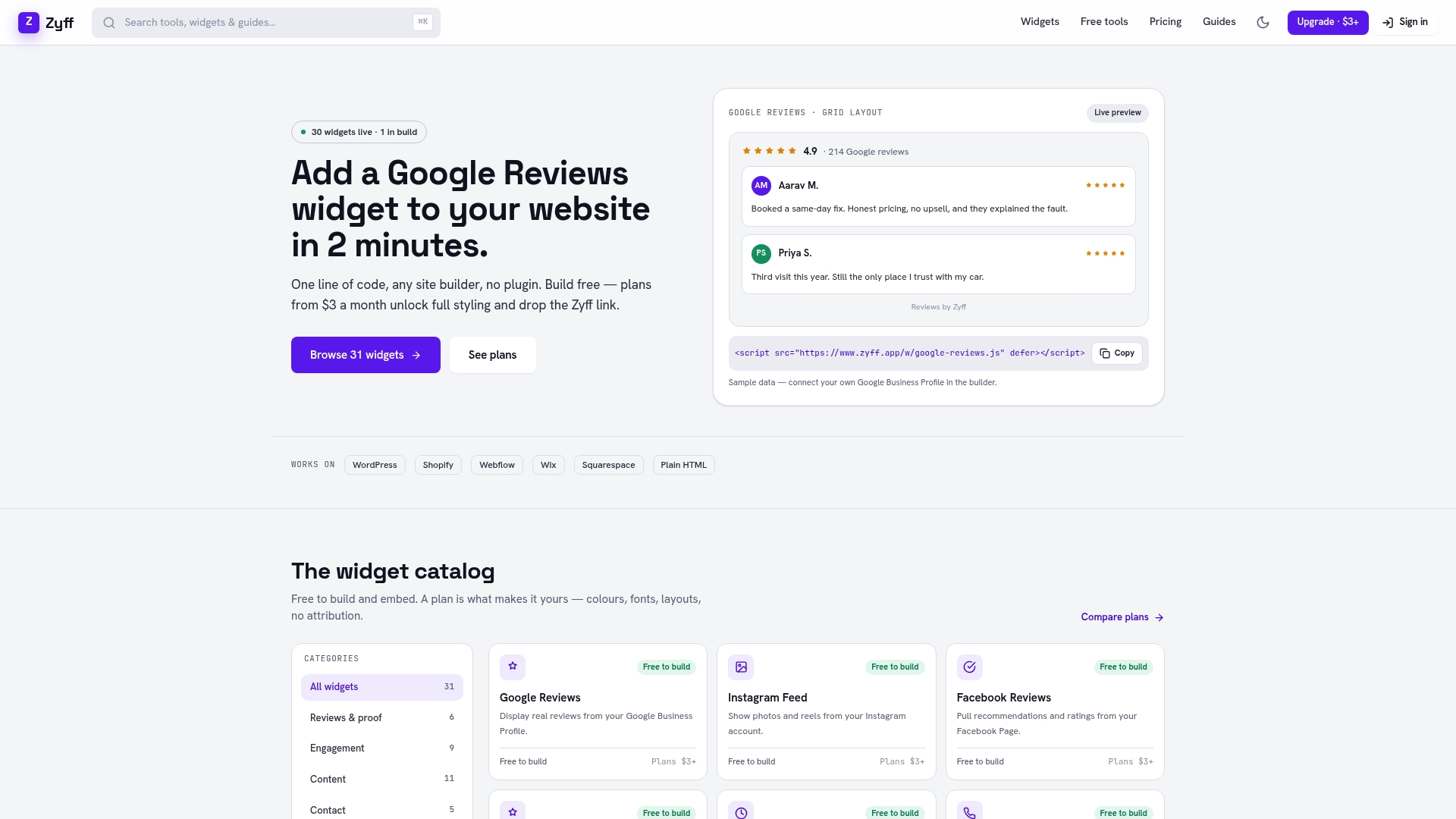
We built our widget builder so adding a customizable Instagram feed takes one line of code, no plugin management and no App Market dependency required. The free plan lets you design and preview widgets, and you can upgrade later for higher usage quotas or to remove branding entirely.
- Follow our Wix installation guide to add the embed code to your site in a few minutes.
- Preview your feed free, then check our pricing page if you need expanded limits or white-labeling later.
If you’re also thinking about turning Instagram engagement into direct revenue, a tool like Tipper’s Instagram tip link lets followers send support directly from your profile, a useful complement to a live feed on your site.
FAQ
How do I show an Instagram feed on Wix?
Install the Instagram Feed app from the Wix App Market, connect your Instagram account, and customize the layout before publishing. Alternatively, you can embed a widget like ours with a single line of code for more design control.
What is a disadvantage of using Wix?
Wix’s App Market apps, including the Instagram Feed app, sometimes limit customization compared to dedicated third-party widgets, and syncing can lag behind real-time posting. Switching platforms later can also be harder than with some code-first site builders, since Wix sites aren’t easily exported.
How do I embed an Instagram feed on my website?
Most embed methods involve copying a short snippet of code into an HTML embed block on your page, whether that’s from a native app or a widget builder. Our HTML embed guide walks through the process for site builders that support custom code blocks.
How do I add a social media feed to my Wix page?
Open the Wix App Market, search for the specific platform’s feed app (such as Instagram Feed), install it, and authorize your account through the app’s settings panel. For more layout flexibility across multiple platforms, a widget builder can also handle this through a single embed code.
Why does my Wix Instagram feed stop updating?
This usually points to an authorization issue: your account connection expired, a permission was revoked, or the linked Facebook Page changed. Reconnect your account, confirm the post is public, and test the published page rather than the Editor view.