3 Steps to a Live Instagram Feed Widget, Free and No Code for SMBs
3 Steps to a Live Instagram Feed Widget, Free and No Code for SMBs

An Instagram feed widget pulls your latest posts and Reels into a customizable gallery you can embed on any site with a single line of code. The fastest path to a live feed is a no-code widget builder: pick a layout, connect your account or a public hashtag, then paste the embed snippet. Tools like Zyff’s Instagram feed widget let you try this today without writing anything.
TL;DR:
- Most no-code Instagram feed widgets connect through Business or Creator accounts, as reading personal profiles became non-compliant after December 2024.
- Embedding a feed involves linking your account or hashtag, choosing a layout, and copying a single code snippet into your website’s embed or HTML block.
- Compatibility spans platforms like WordPress, Shopify, Wix, Squarespace, and Webflow, but caching plugins or page builders can interfere with script loading.
- The Instagram embed system relies on oEmbed or Graph API, with most widgets using oEmbed for reliable, cached content delivery, reducing throttling risks.
- Free widget plans typically include branding and slower refresh rates, with paid plans starting at $3 per month offering more customization and higher limits.
Table of Contents
- Three steps to embed a feed in minutes
- Where to paste the embed code on WordPress, Shopify, Wix and other builders
- Choosing a layout that fits your goal: grids, carousels and moderation
- Which website builders and platforms support these widgets
- How Instagram access actually works behind the scenes in 2026
- What free plans typically limit and when paying makes sense
- Keeping the widget fast, private and accessible
- Why a feed widget earns its place on a small business site
- Get your Instagram feed live with Zyff
- Sources
- FAQ
Three steps to embed a feed in minutes
Most no-code widgets follow the same basic flow, and this pattern shows up across nearly every widget provider and plugin guide as the fastest route to a working feed.
- Connect a source: link your Instagram Business or Creator account, or point the widget at a public profile or hashtag. Personal accounts have more limited options since access rules tightened in late 2024.
- Choose a layout and style: pick a grid, carousel, or masonry design, then adjust colors, spacing, and the number of posts shown.
- Copy and paste the embed code: drop the one-line snippet into your site, refresh the page, and confirm the feed loads and updates.
This flow works whether you’re building a portfolio page, a product page with social proof, or a full-width feed on your homepage. Once the code is in place, the widget itself keeps the content current, so you rarely have to touch the embed again unless you want to change the layout.
Zyff’s guide on embedding a single Instagram post walks through the same steps for a single post if you only need one image rather than a full feed. If you get stuck at the connection step, it is usually caused by account permissions rather than a widget issue; verify the account type is Business or Creator.
Where to paste the embed code on WordPress, Shopify, Wix and other builders
Every major platform accepts embed code, but the exact spot differs.
- WordPress: use the Custom HTML block in the block editor, or add the snippet to a widget area through Appearance, then Widgets, if your theme supports it.
- Shopify: open the theme editor, add a Custom Liquid or HTML section to the page or template where you want the feed.
- Wix and Squarespace: both require an embed or code-injection element; Wix uses a dedicated embed code widget, while Squarespace uses code injection at the page or site level.
- Webflow: add an Embed element anywhere on the canvas and paste the script inside it.
- Custom HTML, React, or Next.js: add the script tag once, then place a mounting div wherever you want the feed to render; server-rendered frameworks may need the script loaded client-side to avoid hydration mismatches, a detail covered in Zyff’s HTML and Next.js install guide.
After pasting the code, preview the page in an incognito window to bypass browser cache, and reload the widget builder dashboard if you change styling so the update pushes without needing a new embed.
Pro Tip: If a feed looks stale after editing it in the builder, hard-refresh the live page (Ctrl+Shift+R or Cmd+Shift+R) before assuming the embed is broken.
Choosing a layout that fits your goal: grids, carousels and moderation
The right display format depends on what the feed is for. A grid works well for a portfolio or a busy homepage section, a carousel suits a narrow sidebar or a product page, and a single-column layout fits blog posts where you want one image to breathe.
- Grid or masonry: best for showing volume, like a photography portfolio or a boutique’s product shots.
- Carousel: best for tight spaces such as sidebars or mobile-first layouts.
- Single column: best when a caption or story matters as much as the image.
Beyond layout, most widgets let you toggle a lightbox for full-size viewing, show or hide captions and like counts, add a follow button, and link each post back to Instagram. Moderation tools matter more than they seem: auto-filtering can hide posts containing certain words, manual approval lets you review before anything goes live, and hashtag filters let you pull in only tagged user content rather than your entire feed. If you plan to feature customer photos, manual approval is worth the extra click per post, since it keeps unrelated or off-brand content off your site.
Which website builders and platforms support these widgets
Nearly every modern platform accepts embed code in some form, but the mechanics differ enough to cause friction if you don’t know what to expect.
- WordPress, Shopify, Wix, Squarespace, Webflow, and BigCommerce all support either a dedicated embed block or a custom HTML/code injection area.
- Plugin-based installs can simplify authentication for non-technical users, while a plain embed-code approach works the same way on any platform, which makes it the more portable choice according to developer commentary on Instagram API integration.
- Caching plugins, page builders, and some themes can strip or sanitize script tags, so if a feed disappears after a theme update, check whether a caching or minification plugin is interfering.
- AMP pages and heavily server-rendered sites sometimes need the widget script loaded asynchronously rather than inline, to avoid render-blocking or stripped scripts.
If your builder doesn’t have a visible “embed” or “custom code” option, look for it under settings named “code injection,” “custom code,” or “developer tools.”
How Instagram access actually works behind the scenes in 2026
Feed widgets get their content one of two ways: through Instagram’s oEmbed system, or through the Graph API. Understanding the difference explains why some widgets are more reliable than others.

The Instagram Embed HTML API (oEmbed) returns an HTML snippet along with metadata like the post’s permalink and embed URL, and many providers serve this through a shared cache to cut down on repeated calls, as Captapi’s documentation on the Instagram embed API explains. That caching matters because it reduces the chance of a widget getting throttled during traffic spikes.
Publishing, analytics, and other business-only actions run through the Graph API instead, which requires a Business or Creator account connected to a Facebook Page, developer app review, and a two-step container process for posting, according to Dravo’s developer guide to the Instagram API. Most site owners only need to display posts, not publish them, so a widget built on read-only embed access covers the vast majority of use cases without that overhead.
Anything reading a personal account has had no compliant path since December 2024, which is why widgets increasingly require a Business or Creator connection.
Reading a personal profile’s posts through the standard embed path has not been compliant since December 2024, according to Getphyllo’s 2026 developer guide to the Instagram API, which is why converting to a Business or Creator account is now a practical first step for anyone setting up a feed. When comparing widgets, favor ones that manage tokens and caching for you rather than asking you to handle API keys directly.
What free plans typically limit and when paying makes sense
Free widget tiers can be useful but often include provider branding, limits on saved feeds, slower refresh rates, and lack moderation or analytics.
- Removing branding is important for client-facing or ecommerce pages.
- Limits on saved feeds can restrict usage when managing multiple pages or clients.
- Refresh rates matter if content updates daily and freshness is desired.
- Moderation and analytics help when the feed is critical for marketing and engagement.
Generally, free versions suffice for decorative use, while paid upgrades benefit active marketing sites.
Keeping the widget fast, private and accessible
A feed widget should never be the reason your site feels slow or raises privacy flags.
- Cache aggressively: a shared or provider-side cache cuts down on live API calls, though it means the feed can lag behind Instagram by a short window rather than updating instantly.
- Lazy-load the widget: load images only as visitors scroll to them, and serve responsive image sizes to protect load times and layout stability.
- Disclose third-party scripts: since embeds pull data from an external service, note this in your privacy policy and, where relevant, your cookie consent tool.
- Check accessibility: make sure the lightbox is keyboard navigable, images carry alt text, and focus states are visible for keyboard users.
Pro Tip: Test your feed with the Lighthouse audit in Chrome DevTools before and after adding lazy-loading to see the real difference in load time.
Why a feed widget earns its place on a small business site

A feed widget is worth adding when social proof and fresh content matter more than manual curation, think restaurants, boutiques, gyms, and service businesses where Instagram already does the heavy lifting of showing real customers and real work. It’s a fast win because it requires no design skills and updates itself.
The tradeoff is control: you’re borrowing content you don’t fully manage, so moderation settings and account hygiene matter more than people expect going in. Widget builders like Zyff make this approachable for non-technical site owners, since the setup mirrors the three-step flow covered earlier rather than requiring any API knowledge.
— Ashok
Get your Instagram feed live with Zyff
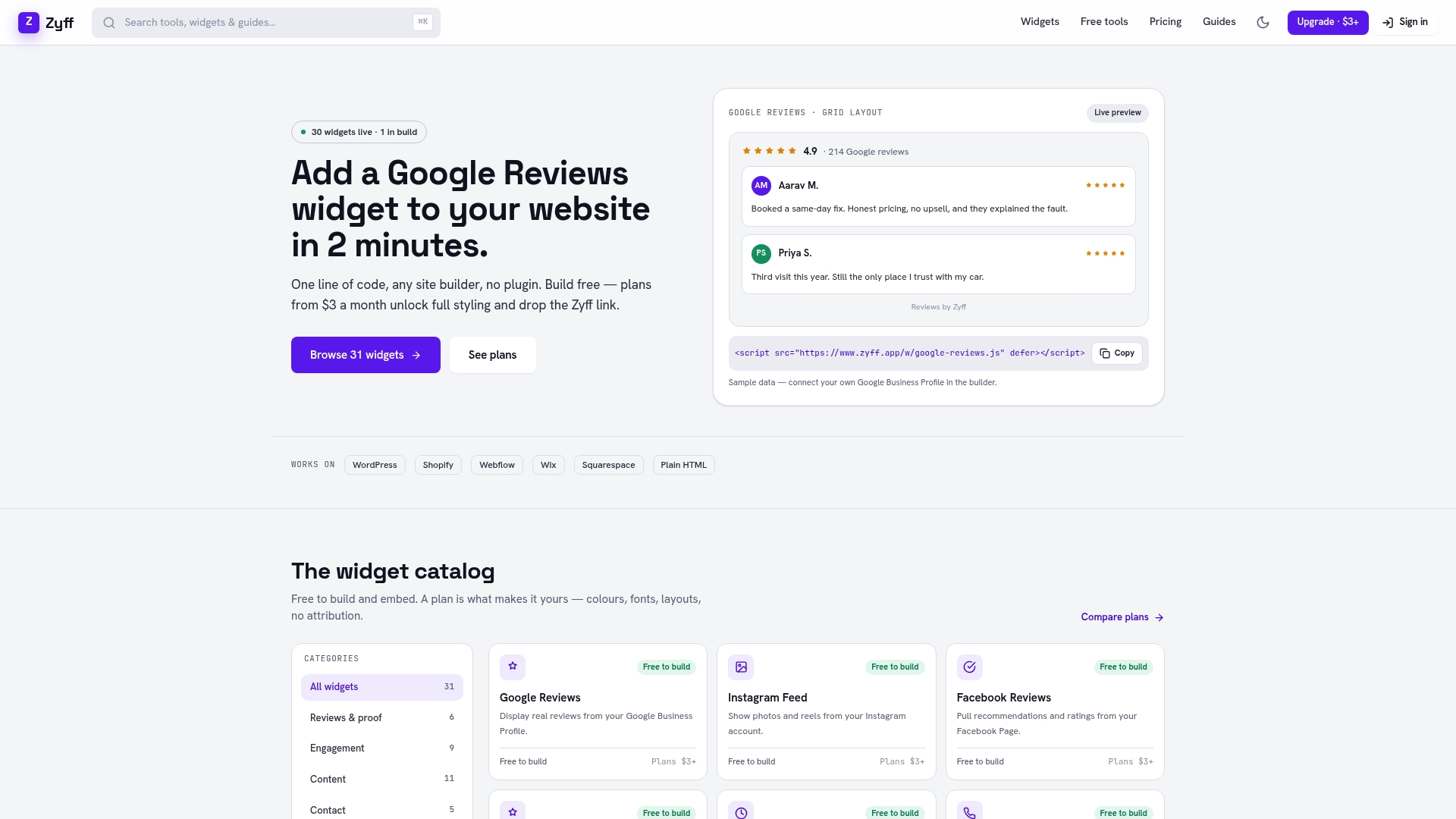
Zyff’s Instagram feed widget follows the same one-line embed model as the rest of its widget builder, and it sits alongside 49 free tools that stay unmetered no matter which plan you’re on. That means you can build, preview, and embed a working feed before deciding whether you need anything more.
- Start free: create the widget, customize the layout and colors, then paste the embed code into your site to try it.
- Upgrade when it counts: paid plans offer branding removal, higher saved widget limits, and more customization options once a feed is active.
- Explore pricing: the Basic plan starts at $3 per month, with Pro, Premium, and higher Enterprise tiers available as your usage grows.
If you outgrow the free tier, the Widget Builder dashboard makes switching plans a matter of a few clicks, not a rebuild.
Sources
FAQ
Is there a widget for Instagram?
Yes, several no-code widget builders let you embed a live Instagram feed or a single post on your site without writing code. These widgets typically use Instagram’s oEmbed system to pull posts and display them in a customizable gallery, as described in Captapi’s Instagram embed documentation.
Is there a free Instagram feed widget that works on any website?
Yes, free widget builders exist that work across WordPress, Shopify, Wix, Squarespace, and custom HTML sites since the embed code itself is platform-agnostic. Zyff offers a free Instagram feed widget that fits this pattern, with paid upgrades available for branding removal and higher limits.
What is the 5-3-1 rule on Instagram?
The content planning guideline some marketers use balances post types, typically mixing curated, personal, and promotional content in a set ratio. Definitions of the exact split vary across sources, so treat it as a loose planning habit rather than a fixed standard.
Can I embed my Instagram feed on my website?
Yes, you can embed your feed using a no-code widget builder or Instagram’s own embed HTML for a single post. For a full feed, connecting a Business or Creator account gives you the most reliable access, since reading a personal account’s posts has not had a compliant path since December 2024 according to Getphyllo’s developer guide.