Add WhatsApp Chat to Your WordPress Site Without a Plugin Using wa.me Links
Add WhatsApp Chat to Your WordPress Site Without a Plugin Using wa.me Links

Either add a wa.me click-to-chat link or embed a lightweight widget, and for most sites a no-plugin widget gets you there faster since it installs with one line of code. Most small and medium sites never need the WhatsApp Business API, since a plugin or widget covers the job. Whichever route you pick, test the link on mobile and desktop, and remember that wa.me requires strict E.164 number formatting with no symbols or spaces.
TL;DR:
- No-plugin widgets offer faster, easier setup and compatibility across site builders, making them ideal for small sites with simple needs.
- Plugins with multi-agent or WooCommerce features benefit active stores but add complexity and maintenance concerns on smaller or static sites.
- Properly formatted wa.me links require only digits, no symbols, and should be tested across mobile, desktop, and in-app browsers before deployment.
- Embedding a WhatsApp widget or link on product pages with dynamic details can boost real-time customer engagement and support conversion rates.
- Starting with one simple chat link or widget, then measuring its effectiveness over a few weeks, helps determine if adding more advanced features is justified.
Table of Contents
- Plugin vs no-plugin embed: which one fits your site?
- Build and test a wa.me click-to-chat link
- Install a WhatsApp plugin on WordPress without the guesswork
- Put a WhatsApp button on your WooCommerce product pages
- Keep the chat button fast, private, and conflict-free
- Where this guide’s recommendations come from
- Zyff: an alternative approach to adding WhatsApp chat
- Keep chat simple and measure before you expand
- FAQ
- Sources
Plugin vs no-plugin embed: which one fits your site?
The choice comes down to how much structure you need versus how fast you want to move. A WordPress plugin gives you an admin dashboard, built-in WooCommerce hooks, and support for multiple agents answering from different numbers. A no-plugin widget skips the dashboard entirely: you paste one script tag and the chat button appears, styled to match your site, without adding another item to your plugin update list.
Plugins tend to win when you run a support team or a storefront with real order volume:
- Multi-agent routing lets different team members handle chats from one widget.
- WooCommerce integrations attach chat buttons directly to product and checkout flows.
- Admin settings screens let non-developers adjust hours, messages, and visibility without touching code.
A no-plugin embed wins when speed and portability matter more than deep e-commerce logic:
- Faster load, since there is no plugin bootstrapping on every page request.
- Works across builders, including static HTML, Webflow, Squarespace, or WordPress itself, with the same snippet.
- One-line installation that avoids adding to your plugin update and conflict list.
Before deciding, run through a short checklist: How much traffic does the site get, and does that justify analytics on chat clicks? Do you need more than one agent or phone number answering? Are you already managing several plugins and trying to avoid one more dependency? If the answer to the last question is yes, a widget-based embed is often the lower-maintenance path, while sites with active WooCommerce stores usually benefit from a dedicated plugin’s deeper hooks.
Build and test a wa.me click-to-chat link
A click-to-chat link follows a fixed pattern: https://wa.me/<number>, where the number is written in full international format using digits only, no plus sign, spaces, or dashes. A US number like (555) 123-4567 with country code 1 becomes https://wa.me/15551234567.
To prefill a message, append ?text= followed by a URL-encoded string. For example, https://wa.me/15551234567?text=Hi%2C%20I%20have%20a%20question%20about%20your%20products opens a chat with that sentence already typed in, ready for the visitor to send.
| Element | Example | Note |
|---|---|---|
| Base link | https://wa.me/15551234567 |
Digits only, country code included |
| With message | https://wa.me/15551234567?text=Hi%2C%20I%20need%20help |
Spaces encoded as %20 |
| Common mistake | https://wa.me/+1 (555) 123-4567 |
Breaks because of symbols and spaces |
Pro Tip: Build your wa.me links in a spreadsheet first, strip every non-digit character from the phone number column, then concatenate the URL so you never hand-type a broken link.
Test every link on three surfaces before publishing: the WhatsApp mobile app, the WhatsApp Web or desktop app, and any in-app browser your traffic might come through, such as links opened inside Instagram or Facebook. In-app browsers occasionally fail to hand off to the native app, so a quick manual test from a few platforms catches issues before visitors hit them.
Install a WhatsApp plugin on WordPress without the guesswork
Installing a plugin is the same process whether you choose a free or premium one, and following the standard path avoids most configuration headaches.
- From your dashboard, go to Plugins > Add New and search for a WhatsApp chat plugin by name.
- Click Install Now, then Activate once installation finishes.
- For a premium plugin distributed as a zip file, choose Upload Plugin on the same screen instead of searching, then activate it the same way.
Developers comfortable with the command line can also install plugins via WP-CLI or upload a zip manually through SFTP when the dashboard search does not surface the plugin.
Once activated, a handful of settings determine whether the chat button actually works:
- Phone number field: enter the number in full international format, matching the E.164 rules used for wa.me links.
- Prefilled message: set a short default greeting so visitors do not face a blank chat window.
- Widget placement: choose which pages show the floating button and whether it sits bottom-left or bottom-right.
- Agent and availability settings: configure business hours or multiple agents if the plugin supports it.
- Consent checkbox: enable any built-in GDPR consent option before the chat opens, if the plugin offers one.
Before trusting any plugin with live traffic, check its Last updated date and Tested up to WordPress version on its listing page. Plugins that have not been updated in over a year carry more compatibility and security risk, a pattern documented in plugin installation guides. Also confirm the plugin works with your cache plugin and page builder, since Elementor and Gutenberg both render pages differently and a poorly coded widget can disappear behind cached HTML.
Put a WhatsApp button on your WooCommerce product pages
E-commerce sites get the most value from WhatsApp when the button carries context about what the shopper is looking at, not a generic greeting.

Common placement spots include directly above or below the Add to Cart button, on product archive or category pages, and on the order confirmation or thank-you page for post-purchase questions. A button on the thank-you page catches customers while they are still engaged, often leading to upsell or shipping questions that convert into repeat sales.
For the prefilled message, pull in product details dynamically so support staff see exactly what the shopper means:
- Template:
Hi, I'm interested in [Product Name] (SKU: [SKU]), priced at [Price]. Is it in stock? - A real example might read:
Hi, I'm interested in Canvas Tote Bag (SKU: CTB-204), priced at $28. Is it in stock? - Include the product permalink in the message so agents can open the exact listing without searching.
WooCommerce stores that rely heavily on hooks and extensions will find most WhatsApp plugins slot into the product page template without custom code, but it is worth confirming the hook location before launch. Track performance by tagging your wa.me links with UTM parameters or routing them through short links, then compare click volume against completed orders over a few weeks to see whether chat-driven conversations actually move toward checkout.
Keep the chat button fast, private, and conflict-free
A WhatsApp button that looks fine in testing can quietly break once a cache plugin or page builder gets involved, so a short compatibility pass before launch saves support headaches later.
- Load client-side after the page renders, so cached HTML never serves a stale or missing phone number baked into the markup.
- Exclude the widget script from aggressive minification or page-caching rules if your cache plugin lets you set path exceptions.
- Add a consent checkbox before the chat opens rather than loading WhatsApp’s redirect silently, which keeps the interaction aligned with general privacy expectations around messaging tools.
- Avoid storing extra personal data client-side, such as logging visitor messages in your own database alongside the WhatsApp redirect.
- Test on Gutenberg and Elementor separately, since block-based and builder-based themes handle footer scripts differently.
- Open the chat button from a mobile in-app browser, such as the one inside Instagram, to confirm it still hands off to the WhatsApp app correctly.
Pro Tip: If your floating button vanishes after enabling full-page caching, check whether the plugin reads its phone number from a data attribute that loads via JavaScript rather than hardcoding it into cached HTML.
Running through this list once during setup, and again after any theme or cache plugin update, catches most breakage before a visitor ever notices.
Where this guide’s recommendations come from
This guide draws on hands-on testing of click-to-chat link formatting, plugin installation workflows, and widget embedding across WordPress themes and builders. A few proof points worth knowing if you are weighing a plugin-free route:
- There are many free tools available that stay unmetered on every plan, including a free tier for testing before committing to anything paid.
- Our WhatsApp Chat Button widget and our broader multi-platform chat widget both cover WhatsApp alongside other messaging channels in one embed.
- Widgets install with a single line of code, which means no plugin update queue and no dashboard settings screen to maintain.
Adding one of our widgets to WordPress follows the same pattern described in our WordPress install guide: build the widget, copy the embed snippet, and paste it into your theme’s footer or a block on the page where you want it to appear.
Zyff: an alternative approach to adding WhatsApp chat
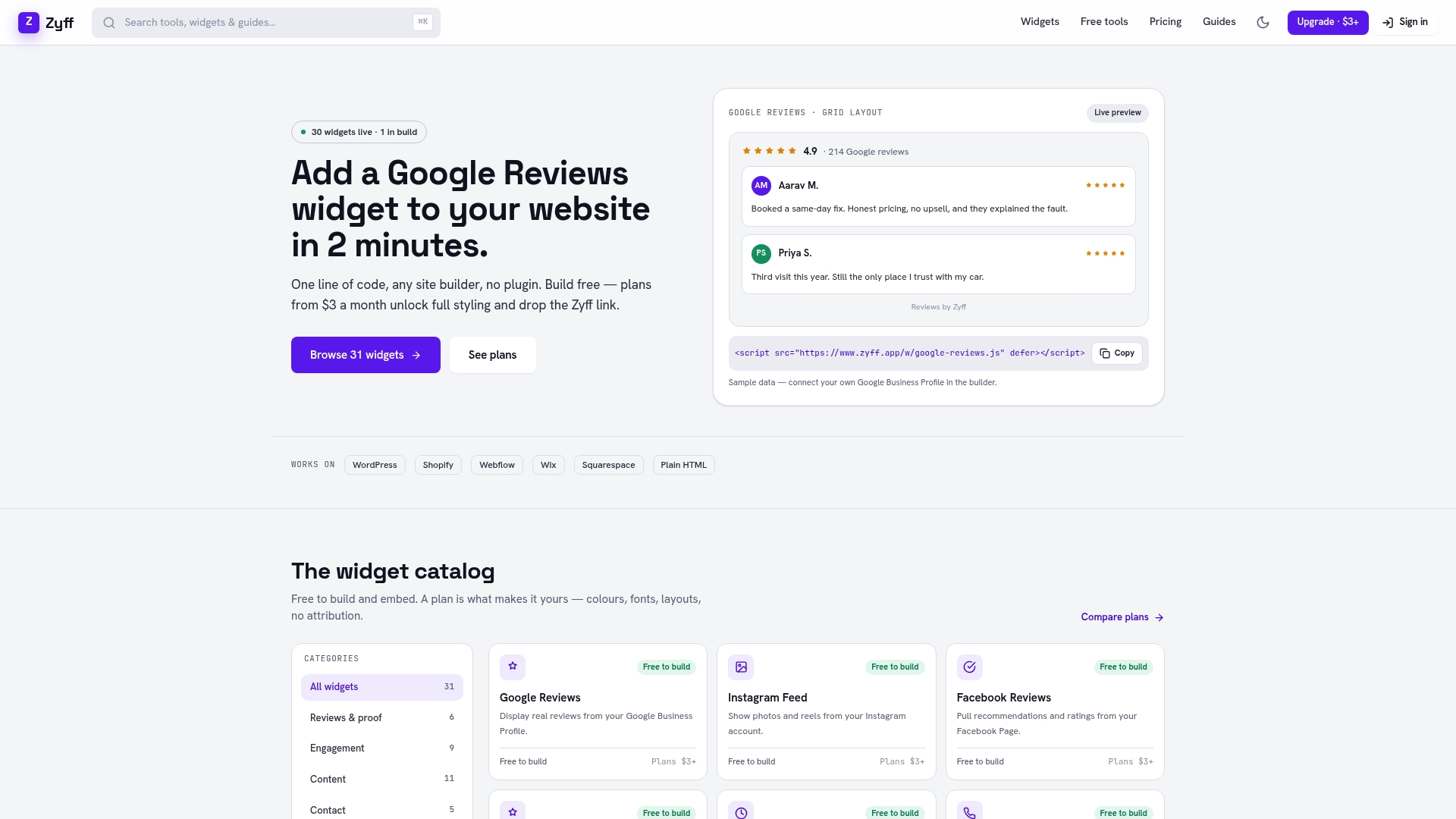
If installing and maintaining a dedicated plugin feels like more than your site needs, embedding a widget gets you the same floating chat button without adding another item to your update list. We build the WhatsApp chat widget specifically for this: customize colors and position to match your branding, test it on our free tier, then follow the WordPress install steps to drop the snippet into your footer or header.
Getting started takes a few minutes:
- Open our widget builder and select the WhatsApp chat option.
- Set your phone number, prefilled message, and appearance to match your site.
- Copy the single-line embed code and paste it into your WordPress footer or a custom HTML block.
Once it is live, compare it against any plugin you were considering. If you decide the widget route fits better long term, our pricing page lays out what each plan unlocks beyond the free tier, including higher view quotas and removal of branding.
Keep chat simple and measure before you expand
My honest recommendation: start with one wa.me link or a single widget instance, not a full plugin suite with agent routing and automation rules you have not needed yet. Run it for two to four weeks, watch how many conversations it actually starts, and check whether those conversations turn into sales or support resolutions before adding complexity. Chat tools also sit close to visitor privacy, so keep the consent step visible rather than treating responsiveness and privacy as a tradeoff.
— Ashok
FAQ
Where can I get a WhatsApp click-to-chat link?
You create one yourself using the free wa.me format: https://wa.me/ followed by your full international phone number in digits only. No account or API access is required, and you can test the official format directly before adding it to your site.
Are WordPress plugins free?
Many WordPress plugins, including most WhatsApp chat plugins, offer a free core version through the WordPress plugin directory, with paid tiers unlocking features like multi-agent support or advanced analytics. This freemium model is common across the WordPress plugin ecosystem, so always check a plugin’s pricing page before assuming a feature is included.
How do I add a WhatsApp button to my WordPress website?
Go to Plugins > Add New, search for a WhatsApp chat plugin, install and activate it, then enter your phone number and prefilled message in its settings. Alternatively, skip the plugin entirely and paste a widget’s single-line embed code into your theme’s footer, which works the same way across WordPress, Wix, or Squarespace.
Is WordPress used for WhatsApp integration?
WordPress itself does not include WhatsApp integration by default, but it supports both plugins and embedded widgets that add a chat button to any page. Most small businesses add either a WhatsApp plugin from the dashboard or a lightweight widget snippet rather than building a custom integration from scratch.
Sources
- WhatsApp Help Center — Click to chat (wa.me)
- How to install WordPress plugins (Kinsta)
- WP-CLI plugin install docs / WordPress developer resources