Publish a WordPress Pricing Table in Minutes With a One Line Embed
Publish a WordPress Pricing Table in Minutes With a One Line Embed

The fastest reliable way to add a pricing table to a WordPress site is to use a modern block plugin or an embeddable widget rather than coding one from scratch. A Gutenberg-native plugin or a single-line widget like Zyff’s Pricing Table gets you a styled, responsive table in minutes. Below, we walk through setup, design choices that drive conversions, and when custom code is worth the extra effort.
TL;DR:
- Reusable saved tables with plugin support streamline updates across multiple pages, saving hours when prices change frequently.
- Lightweight embeddable widgets reduce page load times and help maintain Core Web Vitals, especially important on resource-constrained hosting.
- Custom code offers full design control but requires ongoing maintenance and technical expertise, which may lead to faster technical debt.
- Built-in billing toggles with immediate price recalculations and mobile-responsive design enhance user experience and conversion rates.
- Compatibility with WooCommerce and support for shortcodes or reusable blocks expand options for direct product linking and legacy site integration.
Table of Contents
- Why choose a plugin or embeddable widget instead of coding from scratch
- Step-by-step: build, style, and publish a pricing table
- Design and conversion best practices for pricing tables
- What to look for in plugins or widgets: a practical features checklist
- Advanced option: code your own pricing table, minimal approach and pitfalls
- Zyff resources and proof points for fast pricing tables
- Editor’s take: when a widget wins and when a plugin or custom build is better
- Try Zyff’s Pricing Table widget
- FAQ
- Sources
Why choose a plugin or embeddable widget instead of coding from scratch
Building a pricing table by hand means writing your own HTML, CSS, and often a bit of JavaScript for the billing toggle. That gives you full control, but it also means you own every bug, every browser quirk, and every update when WordPress ships a new core release. A plugin or widget trades some of that control for speed: you get templates, built-in responsiveness, and a visual editor instead of a text editor.
Performance is the real tradeoff to weigh. A heavy plugin can load extra CSS and JavaScript on every page it touches, which matters for Core Web Vitals if your host is already resource-constrained. A lightweight, purpose-built widget that loads asynchronously tends to have a smaller footprint than a bloated all-in-one page builder module.
Data ownership is the other factor people forget until it bites them. Deactivate a plugin that stores pricing data in custom post types, and your tables can disappear or break instantly. An embeddable widget that lives outside your WordPress database, by contrast, keeps functioning as long as the embed script loads, which makes migration and troubleshooting simpler.
One more distinction matters for anyone updating prices often: some block-based plugins offer a Saved Table mode that lets you edit a table once and have the change apply everywhere it’s embedded, instead of editing each page separately.
- Plugins and widgets save setup time and include ready-made templates.
- Custom code gives full design freedom but adds ongoing maintenance.
- Saved/reusable tables update everywhere at once; per-instance tables require editing each page.
- Lightweight output protects page speed and Core Web Vitals scores.
Pro Tip: Before committing to a plugin, check whether it offers a reusable table mode. If you run seasonal promotions or adjust prices often, this one feature saves hours over a year.
Step-by-step: build, style, and publish a pricing table
Whether you’re using a block plugin or an embeddable widget, the workflow follows the same basic shape. Here’s how to go from blank page to published table.
- Install or embed your tool. For a plugin, go to Plugins > Add New, search for a block-based pricing table plugin, and activate it. For a widget, create your table in the builder and copy the single-line embed snippet, no plugin installation required.
- Create your plan cards. Add a name for each tier (Basic, Pro, Premium, and so on), set the monthly and annual price, and list the feature rows that differentiate each plan.
- Add call-to-action links. Point each plan’s button to the right destination, whether that’s a signup page, a contact form, or a WooCommerce checkout URL.
- Style the header and price display. Make the price the largest, boldest element in each card. Choose a color scheme that matches your brand but keeps enough contrast for readability.
- Add a featured-plan badge. Use a ribbon, border, or background color to draw the eye to the plan you want most visitors to pick.
- Enable the billing toggle. If your plugin or widget supports a monthly/annual switch, turn it on and set which cadence shows by default. Most sites default to annual to showcase savings.
- Save as a reusable table. If your tool supports it, save the table as a reusable object rather than content baked into one page, so future edits propagate automatically.
- Embed and test. Place the block, shortcode, or widget snippet on your pricing page, then check it on a phone, a tablet, and a desktop browser before publishing.
Some newer block plugins build billing toggles and featured-plan styling directly into the Gutenberg editor, so you can preview changes without switching between editor and front end. That live-preview workflow cuts down on the back-and-forth that used to make pricing table edits tedious.
For classic themes or page builders that don’t support blocks well, shortcode support matters more than the block editor does. A shortcode like [pricing_table id="12"] drops the same table into any template, widget area, or legacy page, which is useful if parts of your site still run on an older theme.
If you’re selling physical or digital products rather than subscription tiers, linking each plan’s button to a WooCommerce product page or checkout URL turns your pricing table into a direct sales tool rather than just an informational display.
- Test every CTA link before publishing, not after.
- Check mobile stacking: cards should reflow vertically, not shrink to unreadable widths.
- Confirm the billing toggle recalculates prices instantly without a page reload.
- Verify the featured plan badge renders correctly in your theme’s color scheme.
Pro Tip: Preview your table on an actual phone, not just your browser’s responsive mode. Some touch targets and toggle switches behave differently once you’re on a real device.
Design and conversion best practices for pricing tables
A pricing table’s job is to make a decision easy, not to list every feature you offer. The layout choices you make have a direct bearing on which plan visitors pick and whether they convert at all.
Highlighting your recommended plan with a badge, ribbon, or heavier border gives visitors a shortcut when they’re unsure which tier fits them. Featured-plan highlighting is a common factor in conversion-focused pricing table design, since it reduces the mental effort of comparing every row across every column.
Feature rows work best as short phrases with a checkmark or cross icon rather than full sentences. A visitor scanning three columns should be able to compare rows at a glance, not read paragraphs.
Call-to-action buttons need to say something specific. “Start Free,” “Get Started,” or “Buy Now” all outperform a generic “Submit” or “Learn More” because they tell the visitor exactly what happens next. Button contrast matters just as much as the copy: a button that blends into the background gets ignored no matter how good the label is.
Mobile readability deserves special attention. Design guides recommend testing pricing tables on mobile and keeping price typography legible, since small font sizes hurt both conversions and accessibility. If your price numbers shrink below 18px on a phone screen, visitors will struggle to compare tiers at all.
- Highlight one plan visually; don’t make every tier look equally important.
- Use short feature phrases with check or cross icons instead of full sentences.
- Show the annual savings explicitly next to the toggle.
- Use specific, action-oriented button labels with strong contrast.
- Test tab and keyboard navigation to confirm buttons and toggles are reachable without a mouse.
A quick keyboard-only pass through your table, tabbing from the first CTA to the last, catches accessibility gaps that a visual check alone misses.
What to look for in plugins or widgets: a practical features checklist
Not every pricing table plugin offers the same feature set, and the gaps usually show up after you’ve already built something. Before you commit, run through this checklist.
- Native block support with live preview, so you can see styling changes in the editor instead of previewing a separate page.
- Shortcode support for classic editor themes, page builders, or widget areas that don’t render blocks well.
- Saved Table (reusable) mode alongside per-instance storage, so you can choose between one edit updating every page or isolated content per placement.
- Billing toggle with proper currency formatting, including support for your store’s currency symbol and decimal conventions.
- Featured-plan highlight options with flexible styling, not just a fixed badge color you can’t adjust.
- WooCommerce or custom CTA integration, letting buttons link directly to product pages or checkout flows.
- Export or import capability, ideally as a JSON backup, so you can move tables between sites or restore them after an error.
- Active maintenance and current WordPress compatibility, confirmed by a recent update date rather than a plugin that hasn’t been touched in two years.
Some plugin pages highlight Gutenberg compatibility, reusable templates, and WooCommerce integration together as a bundled feature set, which is worth comparing against a lighter, single-purpose widget if you only need a simple pricing display without a shopping cart behind it.
Advanced option: code your own pricing table, minimal approach and pitfalls
Custom code makes sense when you need pixel-perfect brand consistency, unique interactivity beyond what a plugin offers, or the smallest possible page weight. If your design team has already built a component library, a bespoke table slots into that system more cleanly than a third-party plugin ever will.
A minimal build starts with semantic HTML: a <section> wrapping individual <article> elements for each plan, with a heading, a price, and a <ul> for feature rows. CSS Grid or Flexbox handles the layout, and a small amount of JavaScript toggles the monthly and annual price display by swapping a data attribute or class. If the toggle affects content visibility, basic ARIA roles keep it usable for screen reader visitors.
To keep it reusable, build the table as a custom Gutenberg block or a template part rather than hardcoding it into a single page. That way, future pricing changes mean editing one file instead of hunting through page content.
- Semantic HTML with clear heading hierarchy for each plan card.
- CSS Grid or Flexbox for responsive layout without a framework dependency.
- A small JavaScript toggle function, not a full library, for billing cadence switching.
- A reusable block or template part instead of inline page content.
The tradeoff is maintenance. Custom code needs version control, backups before theme updates, and someone on the team who can troubleshoot it when a WordPress core update changes how blocks render. If that person leaves, the custom table becomes technical debt fast.
Zyff resources and proof points for fast pricing tables
Our widget builder includes 49 free, unmetered tools, among them a Pricing Table widget that embeds with a single line of code on any site, WordPress or otherwise. We built the design, preview, and implementation flow so you can adjust plan names, prices, and feature rows without touching a line of CSS.
The widgets follow a saved, reusable model: edit the table once in the builder, and every page where it’s embedded reflects the change automatically. This matches an “edit once, update everywhere” behavior familiar to WordPress users, while working independently of the platform your site runs on.
Editor’s take: when a widget wins and when a plugin or custom build is better
For a small-business marketing page, an embeddable widget is the right call. You need something live today, consistent across pages, and simple enough that nobody has to relearn a plugin’s settings panel every time a price changes.

Ecommerce stores with product-synced pricing are a different case. A plugin with native WooCommerce integration, or a custom build tied directly to your product catalog, avoids the duplicate data entry that comes from maintaining prices in two places.
Design agencies working on high-brand client projects usually land on custom code, not because plugins are inadequate, but because full control over markup and animation is part of what they’re selling. For everyone else, the time saved by a widget or plugin outweighs the control they give up.
— Ashok
Try Zyff’s Pricing Table widget
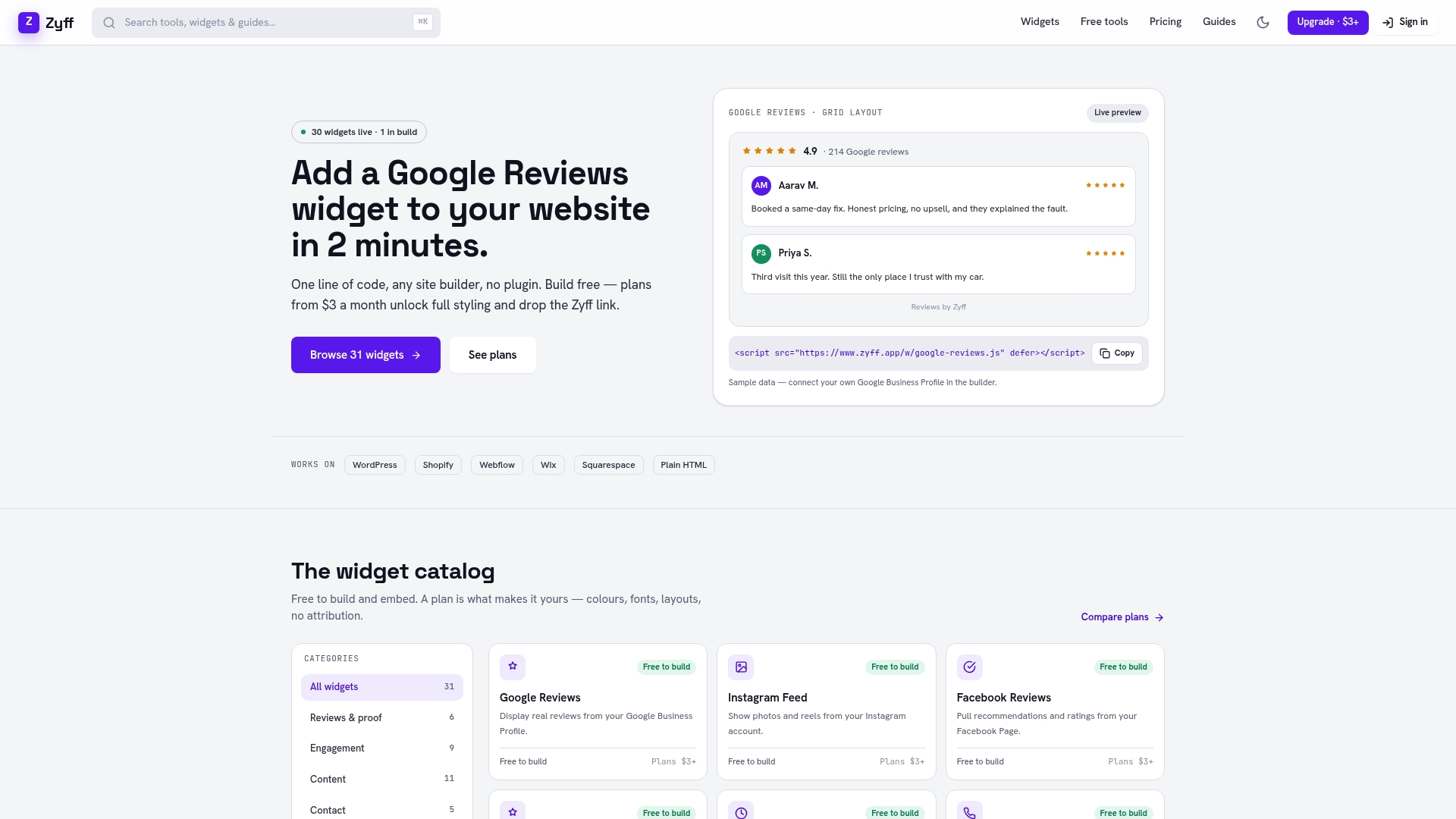
If you want a pricing table live today without touching a plugin settings panel, our Pricing Table widget embeds with one line of code on any WordPress page, and the free plan lets you build and preview it before you decide on anything paid. Templates are ready to customize, and the builder shows you exactly how the table will look before you publish.
When you’re ready for more saved widgets, higher view quotas, or removing our branding, our pricing page lays out the paid tiers.
- Build your table in the widget builder with a live preview.
- Copy the one-line embed snippet into your page.
- Test it on mobile and desktop before publishing.
- Upgrade later if you need more saved widgets or custom branding removed.
| Step | What you do |
|---|---|
| Build | Design plan cards, prices, and features in the builder |
| Preview | Check layout and billing toggle before publishing |
| Embed | Paste the one-line snippet into your page |
| Test | Confirm mobile stacking and CTA links work |
FAQ
How much is WordPress pricing?
WordPress.org software itself is free to download and use. Costs come from hosting, a domain name, and any premium plugins or themes you add, including pricing table plugins that may charge for advanced features.
Which is more expensive, Wix or WordPress?
Wix bundles hosting and a builder into one subscription, while WordPress separates hosting, domain, and plugin costs, so the total depends heavily on which plugins and hosting tier you choose. Neither is universally cheaper since WordPress costs can stay low with free plugins or rise quickly with premium add-ons.
Is TablePress free?
TablePress is a free WordPress plugin for building data tables, though it’s built for general tabular data rather than dedicated pricing table styling like billing toggles or featured-plan badges. For a pricing-specific table with those conversion features, a purpose-built pricing table plugin or widget is a better fit.
Is WordPress or Squarespace cheaper?
WordPress software is free, but hosting, domain, and plugin costs add up, while Squarespace charges a single recurring subscription that bundles hosting in. Which one ends up cheaper depends on how many premium plugins or themes a WordPress site needs versus Squarespace’s flat plan price.