Get More Chats: 3 Ways Small Businesses Add a WhatsApp Link
Get More Chats: 3 Ways Small Businesses Add a WhatsApp Link

The fastest way to let visitors message you is a wa.me click-to-chat link, embedded as a button or a floating widget, using the format https://wa.me/<internationalnumber>. Add ?text= with a URL-encoded message to boost replies. A single anchor tag or floating snippet covers most small business needs; only move to the WhatsApp Business API when you need shared inboxes, multiple agents, or automated routing.
TL;DR:
- Using a pre-filled message with URL encoding can significantly increase WhatsApp reply rates by reducing visitor effort.
- Proper international number formatting without plus signs, spaces, or dashes is essential; errors often cause links to break or misroute.
- Embedding a static HTML link, a floating widget, or a platform widget builder suits different control and maintenance needs, especially for small businesses.
- Testing links on mobile and desktop ensures they open the WhatsApp app or WhatsApp Web correctly, preventing common click failures.
- Tracking engagement benefits from UTM parameters or short links, enabling you to see which pages or messages generate the most chats.
Table of Contents
- What Is the Exact wa.me URL Format?
- How Do You Add a Pre-Filled Message to a WhatsApp Link?
- Which Implementation Path Fits Your Site?
- How Do You Set This Up on WordPress, Wix, and Shopify?
- What Does a Floating WhatsApp Button Look Like in Code?
- How Do You Test a WhatsApp Link Before Launch?
- Common WhatsApp Link Problems and How to Fix Them
- How Do You Track Clicks and Engagement on a WhatsApp Link?
- Can You Customize How a WhatsApp Button Looks on Your Site?
- What Are the Alternatives to a Direct WhatsApp Link?
- What Small Businesses Get Wrong About WhatsApp Buttons
- Get a One-Line WhatsApp Chat Button Without Writing Code
- Sources
- FAQ
What Is the Exact wa.me URL Format?
The canonical WhatsApp link on website pages follows one pattern: https://wa.me/<number>. The number must be in full international format with the country code, but no plus sign, no leading zeros, no spaces, and no dashes or brackets. A US number, for example, becomes https://wa.me/14155551234, not +1 (415) 555-1234. Get this formatting wrong and the click-to-chat link either fails to open or routes to the wrong contact.
You can extend the base URL a few ways depending on what you need:
- Pre-filled message: append
?text=followed by a URL-encoded string, likehttps://wa.me/14155551234?text=Hi%2C%20I%27d%20like%20a%20quote. - Alternate scheme,
api.whatsapp.com/send: functionally similar to wa.me, sometimes used by older integrations or third-party tools that require thephone=andtext=parameters explicitly. - App-only scheme,
whatsapp://send: opens the native app directly on mobile but fails silently on desktop, so reserve it for mobile-specific deep links.
The most common failures are self-inflicted: a stray plus sign, a leading zero left over from a local number format, or a query parameter tacked on before the number instead of after it.
How Do You Add a Pre-Filled Message to a WhatsApp Link?
A blank chat window asks visitors to do all the work. A pre-filled message removes that friction, and WhatsApp’s own guidance confirms that pre-filled text tends to lift reply rates compared with an empty conversation starter. People are more likely to hit send when the message is already written for them.
Here’s how to build one correctly:
- Write the message you want pre-loaded. Keep it short: “Hi, I’m interested in your pricing,” or “Can you check stock on the blue jacket?”
- URL-encode every space and punctuation mark. Spaces become
%20, apostrophes become%27, commas become%2C. So “Hi, I’d like to book a table” turns intoHi%2C%20I%27d%20like%20to%20book%20a%20table. - Append it after the number with a question mark. The finished link looks like
https://wa.me/14155551234?text=Hi%2C%20I%27d%20like%20to%20book%20a%20table.
Avoid pre-filling anything personal, like a name pulled from a form field or an order number, since that data sits in plain text in the URL and can end up in browser history or referral logs.
Which Implementation Path Fits Your Site?
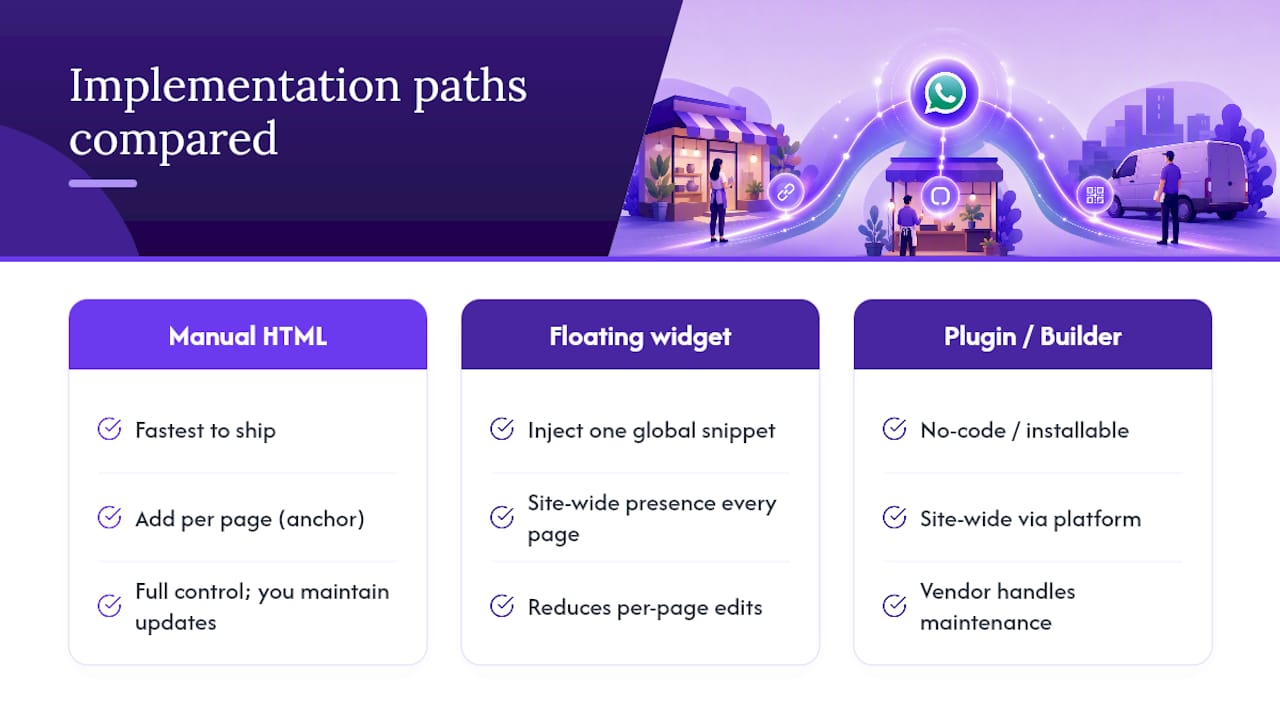
You have three realistic options, and the right one depends on how much control you want and how many pages need coverage.
A plain HTML anchor is the fastest to ship. Drop this into any page:
<a href="https://wa.me/14155551234?text=Hi%2C%20I%20have%20a%20question"
   target="_blank"
   rel="noopener noreferrer"
   aria-label="Chat with us on WhatsApp">
  Chat on WhatsApp
</a>
The target="_blank" opens the chat in a new tab, rel="noopener noreferrer" protects against a known security exploit tied to new-tab links, and aria-label gives screen readers something meaningful to announce.
A floating widget works better for site-wide presence, since one snippet injected globally shows the button on every page without editing each template individually. This is the setup most small businesses actually want.
A platform plugin or built-in widget builder makes sense when you’d rather not touch code or maintain it over time. Manual HTML gives you full control but means you’re on the hook for updates, styling tweaks, and cross-browser testing yourself. A widget builder handles that maintenance for you and tends to perform better than a plugin with unnecessary bloat.
How Do You Set This Up on WordPress, Wix, and Shopify?
Platform shortcuts save time if you’re not comfortable editing raw theme files.
- WordPress: Add a Custom HTML block to a page, or drop the snippet into your theme’s footer via Appearance > Theme File Editor for site-wide coverage. A WordPress-specific install guide walks through placing a widget without needing a dedicated plugin.
- Wix: Use the Custom Code panel under Settings to inject the snippet site-wide, or check Wix’s built-in chat button setting if you want something simpler. Watch for inline styles getting stripped, which can throw off button positioning.
- Shopify: Paste the code into your theme’s
theme.liquidfile just before the closing</body>tag, or use the custom code section in newer themes.
If your CMS strips inline styles or scripts, move the CSS into your theme’s stylesheet instead of inline attributes, or use a global custom code injection area built for this exact problem.
What Does a Floating WhatsApp Button Look Like in Code?
A floating button needs to stay visible without blocking content or colliding with mobile system UI. Here’s a minimal, working example:
<a href="https://wa.me/14155551234?text=Hi%2C%20I%27m%20interested"
   target="_blank"
   rel="noopener noreferrer"
   aria-label="Chat with us on WhatsApp"
   style="position:fixed; bottom:calc(20px + env(safe-area-inset-bottom));
          right:20px; background:#25D366; border-radius:[50%](https://developer.mozilla.org/en-US/docs/Web/CSS/Reference/Properties/right);
          width:56px; height:56px; z-index:999;">
  <img src="whatsapp-icon.svg" alt="" width="28" height="28">
</a>
- The
env(safe-area-inset-bottom)value keeps the button clear of iPhone home-bar gestures and Android navigation strips. aria-labelmatters here since the visible content is just an icon with no text.- Keep
z-indexhigh enough to sit above other elements, but test that it doesn’t overlap a cookie banner or checkout button.
Vary the ?text= value by page template. A pricing page might pre-fill “I have a question about your plans,” while a product page pre-fills the specific item name.
Pro Tip: Test your floating button with keyboard-only navigation. If you can’t tab to it and press Enter to activate it, screen reader users can’t reach it either.
How Do You Test a WhatsApp Link Before Launch?
Testing takes ten minutes and prevents the most common complaint: “the button doesn’t work.”
- Mobile: confirm the link opens the WhatsApp app directly on both iOS and Android, not a broken deep link or app-store redirect.
- Desktop: confirm it opens WhatsApp Web with the chat window pre-loaded, and test in at least Chrome and Safari since behavior can vary slightly.
- Placement: prioritize pricing, product, and contact pages where purchase intent is highest, but keep the button clear of checkout flows where it could distract from completing an order.
- Scale signals: if you’re missing replies, need more than one person answering chats, or want conversation analytics, that’s your cue to move from a static link to an API-backed setup with a shared inbox.
Pro Tip: If you want basic click data without a full platform migration, wrap your WhatsApp link in a UTM-tagged short link. It won’t tell you what was said, but it tells you which page drove the click.
Common WhatsApp Link Problems and How to Fix Them
Most issues trace back to a handful of repeat offenders.
- Broken link on click: almost always a formatting error, a stray plus sign, extra spaces, or a leading zero left in the number.
- Messages going to the wrong number: double-check the exact international number you published against your actual WhatsApp Business account; a single-digit mismatch sends chats nowhere.
- Button not tappable on mobile: usually a z-index conflict or missing safe-area padding, letting another fixed element sit on top of it.
- No visible conversions in analytics: add a UTM parameter or short-link redirect so clicks actually register somewhere you can see them.
How Do You Track Clicks and Engagement on a WhatsApp Link?
WhatsApp itself doesn’t hand you built-in click analytics for a plain wa.me link, so tracking has to happen on your side of the handoff. The simplest method is wrapping your link in a UTM-tagged redirect, something like yoursite.com/go/whatsapp?utm_source=pricing_page, that logs the click in your analytics platform before forwarding the visitor to WhatsApp.
A short-link service works the same way and adds the benefit of a cleaner URL for print materials or QR codes. Either approach tells you which page, campaign, or button variant is driving the most chats, even without integrating anything on WhatsApp’s side.
If you’re running the button across multiple pages with different pre-filled messages, tag each version separately. A pricing-page button and a product-page button should carry distinct UTM values so you can tell which one is actually converting. That distinction becomes useful fast: you might find your product pages generate three times the clicks of your homepage button, which tells you exactly where to double down on placement.
For businesses further along, connecting to the WhatsApp Business API opens up conversation-level analytics, like response time, resolution rate, and message volume by agent. That’s a meaningful jump in complexity and cost, so it only makes sense once you’ve outgrown what click tracking on the front end can tell you. Most small sites get real value out of UTM tracking alone for months before that upgrade becomes necessary.
Can You Customize How a WhatsApp Button Looks on Your Site?
Yes, and the visual choices matter more than most site owners assume. WhatsApp provides official brand assets, including the recognizable green-and-white color scheme and standard icon shapes, and using them tends to improve click-through because visitors instantly recognize what the button does without reading a label.
That said, you have real flexibility beyond the default look:
Color: sticking with WhatsApp’s signature green (#25D366) reinforces recognition, but a muted or brand-matched variant can work if it still reads clearly as a chat button against your site’s palette.
Icon versus text label: an icon-only button saves space and works well as a floating widget, while a text-plus-icon button (“Chat on WhatsApp”) performs better in a header or footer where context isn’t obvious from position alone.
Shape and size: circular floating buttons are the de facto standard because they mimic the mobile app’s own aesthetic. A rectangular button with rounded corners fits more naturally inline within a contact section or sidebar.
Animation: a subtle pulse or shadow on hover draws the eye without being obnoxious. Avoid aggressive bouncing or flashing, which reads as spammy and can hurt trust rather than build it.
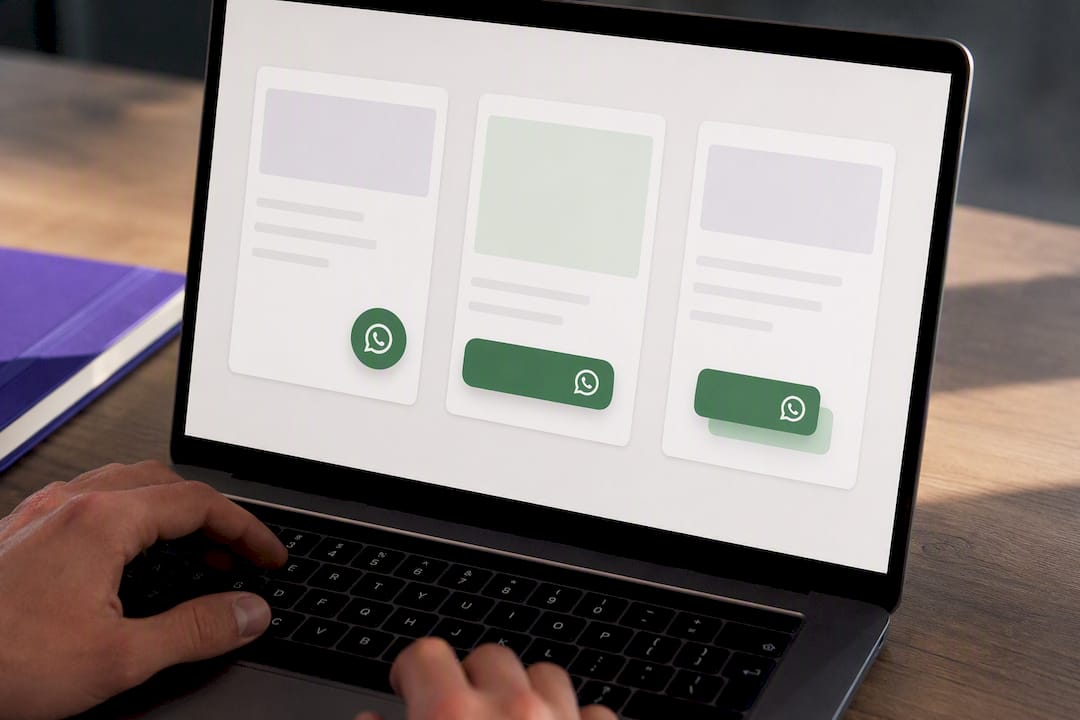
If you’d rather not hand-code every style variation, a widget builder lets you adjust color, icon, size, and placement through a visual interface, then outputs the finished snippet for you to paste in once.
What Are the Alternatives to a Direct WhatsApp Link?
A wa.me link is the simplest option, but it’s not the only one, and it’s worth knowing when something more robust makes sense.
Click-to-chat widgets wrap the same underlying wa.me URL in a styled, often animated, floating component with extra features like a greeting bubble, business hours display, or a small form asking visitors what they need before the chat opens. These widgets are still fundamentally links, just dressed up with more UI polish and, in some cases, basic customization panels.
Chatbots sit a level above that. Rather than routing straight to a human, a chatbot can answer common questions, qualify a lead, or collect contact details before ever opening a live chat thread. This makes sense for sites with high traffic and repetitive questions, where a person answering every single message isn’t realistic.
API-backed shared inboxes are the heaviest option, connecting your WhatsApp Business number to a platform where multiple team members can respond, tag conversations, and pull reporting. The front-end button URL usually doesn’t need to change even after this backend migration, since the visible link keeps pointing to the same number.
For most small businesses, a well-placed static link or a lightly customized widget covers the job. Chatbots and shared inboxes earn their complexity only once conversation volume genuinely outpaces what one or two people can manage by hand.
What Small Businesses Get Wrong About WhatsApp Buttons
Most guides treat the WhatsApp button as a checkbox: add a link, done. That’s backwards. The actual value comes from what happens in the thirty seconds after someone taps it, and that’s almost entirely determined by whether the pre-filled message gives them a reason to hit send instead of closing the tab.
The businesses that get real conversations out of this feature vary their ?text= parameter by page. A generic “Hi” on every page performs worse than a message tied to what the visitor was just looking at. That’s a five-minute fix most sites skip.
The other blind spot is placement discipline. A floating button crammed into the bottom corner of a checkout page doesn’t drive sales, it interrupts them. Reserve prominent placement for pages where a question genuinely blocks a decision: pricing, product detail, service booking. Zyff’s own WhatsApp Chat Button exists because most businesses want that per-page flexibility without hand-editing HTML every time they launch a new product line, and it stays free and unmetered regardless of plan.
— Ashok
Get a One-Line WhatsApp Chat Button Without Writing Code
If you’d rather skip the manual encoding, the safe-area CSS, and the cross-browser testing, Zyff’s WhatsApp Chat Button widget builds that same click-to-chat experience into a one-line embed that works on any site builder.
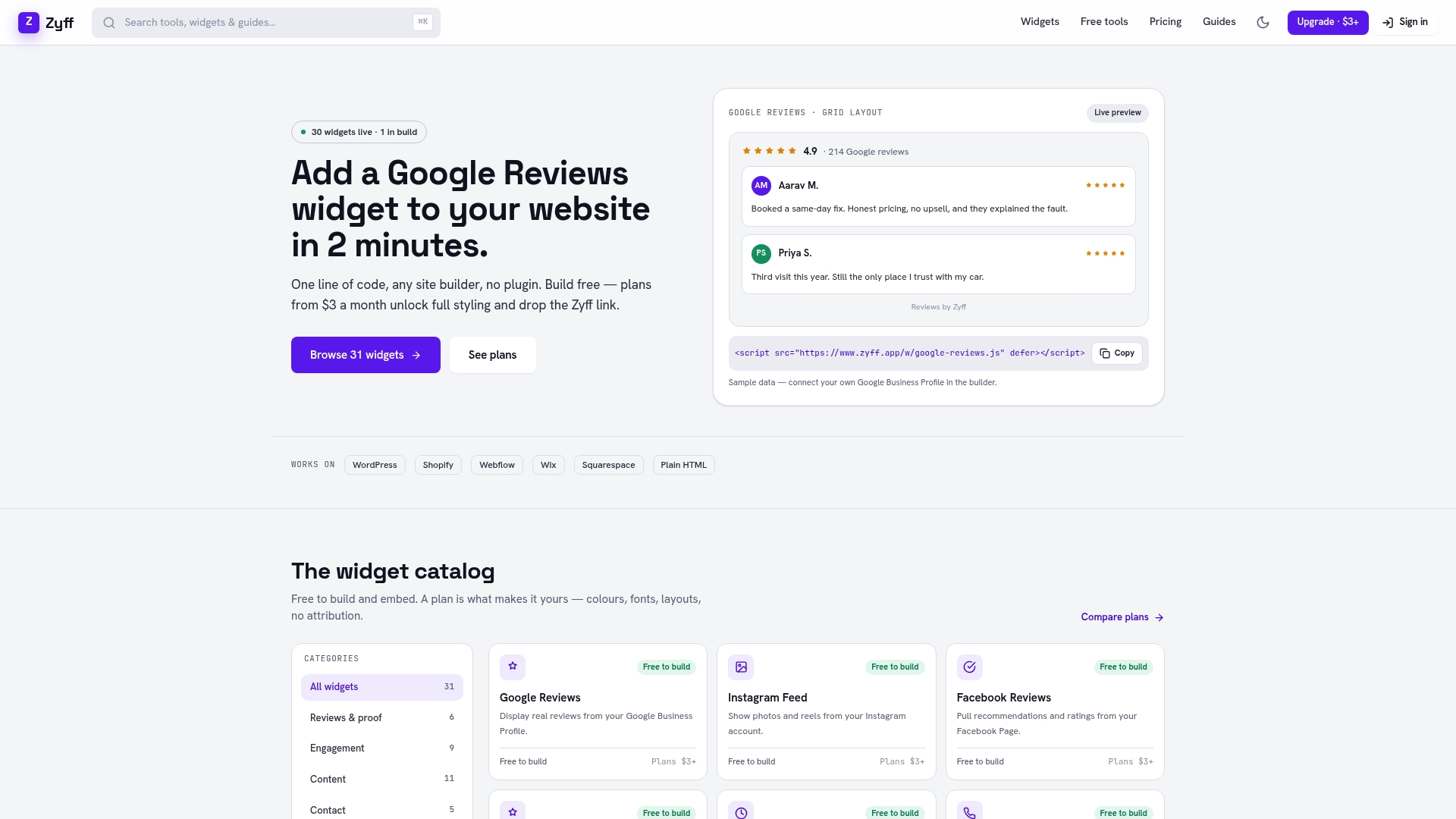
You still get everything covered here: a properly formatted wa.me link, a customizable pre-filled message, and consistent placement across every page, but without maintaining the code yourself every time you want to change the color or the greeting text. That consistency is the real advantage over a hand-rolled snippet: one widget, one place to update it, and it renders the same way whether a visitor lands on your homepage or a product page three levels deep.
Build your button on the Zyff widget builder, or check the pricing page if you want branding removed and higher usage limits. Subscription plans are available starting at a low monthly fee, and the WhatsApp widget itself remains free and unmetered regardless of the plan.
Sources
- How to use click to chat | WhatsApp Help Center
- Add a WhatsApp button to your website | Infobip blog
- Free WhatsApp Link Generator: Create Your Custom Link | ActiveCampaign
FAQ
How Do I Link My WhatsApp to My Website?
Create a wa.me link using your business number in full international format, then embed it as an HTML anchor or floating widget. No app connection or account linking is required since the link opens WhatsApp directly using the number in the URL.
How Do I Get a WhatsApp URL Link?
Combine https://wa.me/ with your number in international format, omitting the plus sign, spaces, and leading zeros. You can build one manually or use a link generator that also produces a QR code and handles encoding for you.
Is a WhatsApp Link a URL?
Yes, a WhatsApp link is a standard URL that follows the https://wa.me/<number> pattern, and it can include a ?text= parameter for a pre-filled message. It functions like any other web link and can be embedded in an anchor tag, shared via email, or printed as a QR code.
How Do WhatsApp Links Open in Chrome?
Clicking a wa.me link in Chrome on a phone typically launches the native WhatsApp app if it’s installed, using an automatic redirect. On desktop Chrome, the same link opens WhatsApp Web instead, showing the chat in a browser tab rather than a native app.