Launch WhatsApp Support on Your Site in Minutes and Scale Safely
Launch WhatsApp Support on Your Site in Minutes and Scale Safely

The fastest safe way to add support on WhatsApp to your site is a click-to-chat link wrapped in a recognizable floating widget, with a short pre-filled message and clear hours posted next to it. This works on both mobile and WhatsApp Web with no app installation. A one-line widget embed can get you there without writing custom code.
TL;DR:
- Ensuring the phone number is in the correct international format without plus signs, brackets, or dashes is crucial for the WhatsApp click-to-chat link to work reliably.
- Using a visible, recognizable floating widget labeled with specific support tasks increases visitor engagement, especially if placed in a corner on all pages.
- Testing the WhatsApp link across devices, browsers, and platforms before publishing prevents most issues caused by formatting errors or platform-specific behaviors.
- Starting support with a simple click-to-chat link and manual responses, then gradually adding automation, optimizes resource use and response quality.
- Adding support via Zyff’s widget builder simplifies setup, as configuring the number, message, and styling requires only copying a single code line into your site.
Table of Contents
- Build a click-to-chat link and embed it on your site
- Where to place the widget and how it should look
- Staying compliant and building trust with every chat
- Testing checklist before you go live
- Scaling from a simple link to automated routing
- Getting the rollout order right
- Getting a WhatsApp widget live in minutes with Zyff
- Sources
- FAQ
Build a click-to-chat link and embed it on your site
The core building block is a WhatsApp click-to-chat link, and getting the format right matters more than anything else in this setup. According to the WhatsApp Help Center, the link follows the pattern https://wa.me/ plus the full phone number in international format, with no plus sign, no brackets, no dashes, and no leading zeros. A business in the 1 country code with the number 5551234567 would use https://wa.me/15551234567.
You can also pre-fill the chat with a short message using a ?text= parameter, which must be URL-encoded (spaces become %20, for example). A good pre-filled message names the page or product the visitor came from so your team has context the moment the chat opens, such as “Hi, I have a question about the Pro plan.”
From there, you have three ways to put the link on your site:
- A plain text or button link pointing straight to the wa.me address.
- WhatsApp’s own Chat on WhatsApp button assets, which keep the recognizable brand look.
- A single-line widget embed, like Zyff’s WhatsApp chat widget, pasted into your site’s header, footer, or a CMS code block.
Paste the snippet once, site-wide if your platform allows it, then open the live page on a phone to confirm the chat opens with the right number and message.
Pro Tip: Always test your wa.me link in an incognito browser tab before publishing. Cached WhatsApp sessions can hide formatting mistakes that a fresh visitor will hit immediately.
Where to place the widget and how it should look
Placement and wording decide whether visitors treat the button as support or ignore it as another popup. A floating button that stays in the corner of every page gets noticed fastest, while a button limited to a contact page is less intrusive but easy to miss if someone needs help mid-purchase.
- Use WhatsApp’s official green bubble or button asset so visitors instantly recognize it as a chat channel, not an ad.
- Label it with the task, not the brand: “Chat with support” or “Support on WhatsApp” outperforms a generic “Contact us.”
- Keep the button a thumb-friendly size on mobile and position it so it never covers a checkout button, form field, or close icon.
- Show your hours or a short “we reply within” line near the button rather than leaving availability a mystery.
A click-to-chat link only opens a conversation if the destination number has an active WhatsApp account. That single requirement explains most “broken button” complaints, since a disconnected or unverified number will fail silently for the visitor.
For most small sites, an always-visible floating button beats a hidden contact-page link, since the entire value of WhatsApp support is removing friction, and friction creeps back in the moment someone has to hunt for the button.

Staying compliant and building trust with every chat
WhatsApp support works because people trust the channel, and that trust depends on following WhatsApp’s own rules, not just getting the link to work. The WhatsApp Business Policy expects businesses to give a prompt, clear path to a human agent, whether that is in-chat handoff, a phone number, an email address, or a support form. Automated replies are allowed inside the normal messaging window, but they can’t be the only option if a visitor wants to talk to a person.
Practical steps that keep you on the right side of that policy:
- Set a greeting message for new chats and an away message outside business hours, so expectations are set before anyone waits.
- Publish your operating hours on the same page as the widget, not buried in a footer link.
- Keep your WhatsApp Business profile details (name, category, address) accurate, since mismatched details undermine the trust the green checkmark is supposed to signal.
- Update your privacy policy to explain that support chats may be used to respond to the inquiry, not for unrelated marketing.
A visitor clicking your chat button is agreeing to that one conversation, not to future promotional messages. The FTC’s 2014 notice on WhatsApp’s privacy obligations is a useful reminder that consent for support contact and consent for marketing are separate things, and your privacy policy should say so plainly.
Pro Tip: If you plan to reuse WhatsApp numbers for newsletters or promotions later, collect that opt-in separately from the support chat, with its own clear checkbox or message.
Testing checklist before you go live
A widget that works on your laptop can still fail for half your visitors if you skip testing across devices. Before publishing, run through this sequence:
- Open the link on an iPhone and an Android phone to confirm WhatsApp launches with the number and message intact.
- Open the same link in a desktop browser to confirm it routes correctly to WhatsApp Web.
- Re-check the phone number for stray plus signs, spaces, or dashes, since any of these can break the link silently.
- Confirm the
?text=parameter is properly URL-encoded; an unencoded space or special character often truncates the message. - Where your setup uses universal links or a custom URL scheme, test both with the WhatsApp app installed and with it absent, since behavior differs by platform.
- Log failed opens or visitor complaints for the first few weeks and adjust the number, message, or placement based on what you see.
Most broken implementations trace back to formatting, not platform bugs, so this five-minute checklist catches the majority of issues before a single customer does.
Scaling from a simple link to automated routing
A solo operator or small team can run support entirely on the free WhatsApp Business App, using its built-in greeting messages, away messages, and basic catalog features. That covers manual replies from one shared device or a small number of linked phones.
Once volume grows past what one or two people can answer by hand, the WhatsApp Business Platform and its Cloud API open up automated routing, chatbots, and CRM integration, letting multiple agents work from a shared inbox with rules for who gets which conversation. The Developer Hub documents the APIs behind that move.
A sensible path:
- Start with click-to-chat and a widget, answered manually.
- Add a scripted auto-response for common questions once repeat questions become obvious.
- Move to Cloud API and CRM integration only when message volume, wait times, or missed replies start to hurt response quality.
- Before upgrading, track message volume, average wait time, and resolution rate so the move is based on evidence, not guesswork.
Template messages and the 24-hour response window matter once automation enters the picture, so read the Platform documentation before building anything that sends outside an active conversation.
Getting the rollout order right
Most businesses overbuild this before they need to. The right sequence is click-to-chat first, a widget second, scripted automation third, and CRM integration only once the numbers justify it. Skipping straight to a chatbot before you know your actual message volume usually means building rules for conversations that never happen.

Keep a human answering the first few weeks of chats no matter how small your team is. That period tells you which questions repeat, which is the only reliable input for deciding what to automate later.
Three types of metrics are worth tracking in the early days: message volume, average time to first reply, and the share of chats that get resolved without escalation. Widget design, button copy, and greeting messages all matter less than whether someone answers quickly and well.
— Ashok
Getting a WhatsApp widget live in minutes with Zyff
Most of the setup above, the link formatting, the button styling, the embed code, is handled for you inside Zyff’s WhatsApp chat widget. You configure your number and pre-filled message, pick a style, and copy a single line of code into your site. No developer, no separate script for mobile versus desktop.
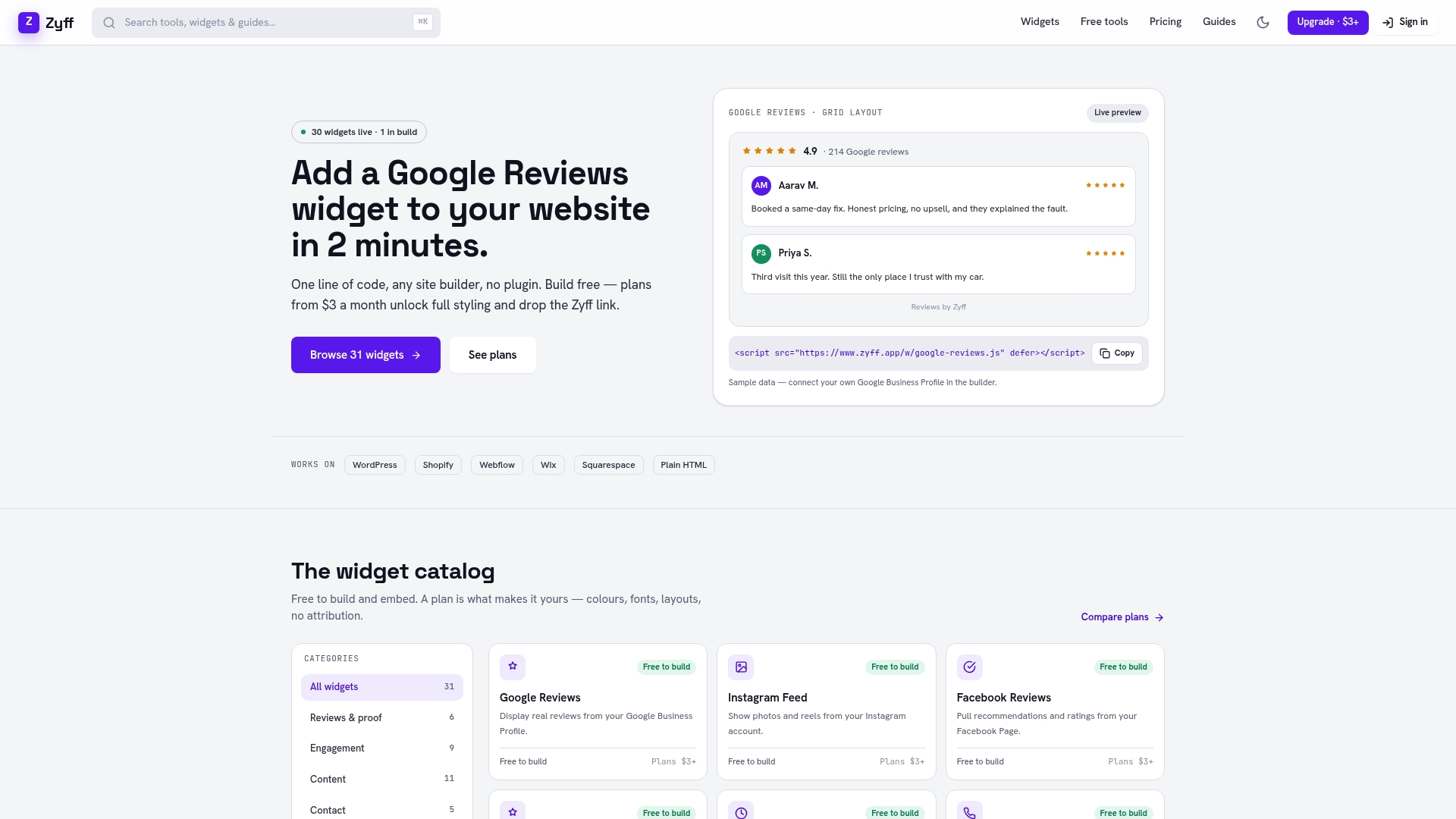
To get a widget live today:
- Open the Zyff widget builder and choose the WhatsApp chat widget.
- Enter your business number and the greeting message you want visitors to see pre-filled.
- Copy the single-line embed and paste it into your site’s header, footer, or page builder.
- Preview on mobile and desktop, then publish.
The widget builder itself is free to use, and Zyff’s pricing page covers the paid tiers, starting at $3 per month for the Basic plan, for anyone who wants saved widgets, extended styling, or branding removed. Start with the free widget builder, see how your first week of chats goes, and upgrade only when you need more than one saved widget.
Sources
FAQ
How do I format a phone number for a WhatsApp click-to-chat link?
Use the full international format with no plus sign, spaces, dashes, or leading zeros, attached after https://wa.me/. The WhatsApp Help Center notes the destination number must belong to an active WhatsApp account or the link will fail to open a chat.
Does clicking a WhatsApp support link give consent for marketing messages?
No. A support chat click is consent for that specific conversation, not for future promotional messages. Guidance referenced in the FTC’s notice on WhatsApp privacy obligations supports keeping marketing opt-in separate and explicit.
What is the difference between the WhatsApp Business App and the Business Platform?
The Business App suits a solo operator or small team answering chats manually with basic greeting and away messages. The Business Platform and Cloud API add automated routing, chatbots, and CRM integration for higher message volume.
Can I add a WhatsApp chat widget without writing code?
Yes. Zyff’s WhatsApp chat widget lets you configure the number, message, and style, then copy a single line of code into your site without a developer.
Why does my WhatsApp link work on mobile but not on desktop?
This is usually a WhatsApp Web routing issue rather than a broken link. Test the same link in a desktop browser separately, since universal link behavior differs between mobile apps and WhatsApp Web, and a formatting error in the number often shows up only on one platform.