Developers: 5 Privacy First Ways to Add Social Share Buttons
Developers: 5 Privacy First Ways to Add Social Share Buttons

Use the Web Share API on mobile, lightweight share-intent links on desktop, and a privacy-first widget for no-code setups. That combination gets you the highest share rate for the least amount of code. Feature-detect first, then fall back gracefully. Native mobile sharing has already shown measurable lift over traditional button sets, while a widget like Zyff handles the desktop and branding side without adding tracker weight to your page.
TL;DR:
- The Web Share API provides a faster, privacy-conscious way to share content on mobile, but requires feature detection and a fallback to intent URLs for desktop.
- Sharing button placement on a page significantly influences engagement, with top, end, sticky, image overlays, and inline options each serving different user intents.
- Building accessible share buttons involves using semantic elements, descriptive labels, and ensuring keyboard navigation, especially on mobile where a single native trigger may be more effective.
- To optimize performance and privacy, it is best to load third-party share scripts asynchronously, avoid external share count badges, and default to native API support whenever possible.
- Using no-code tools like Zyff’s widget allows quick setup of GDPR-compliant, tracking-free share buttons across platforms, with customizable design and easy integration into various website builders.
Table of Contents
- What Are the Best Ways to Add Social Share Buttons?
- Where Should You Place Share Buttons on a Page?
- How Do You Build a Web Share API Button With Fallbacks?
- How Do You Design Accessible Share Buttons?
- How Do Share Buttons Affect Site Performance and Privacy?
- How Do You Measure Whether Share Buttons Are Working?
- What Actually Matters When You Build Share Buttons
- Add Share Buttons Without Writing a Line of Tracking Code
- Where to Read the Official Docs
- Sources
- FAQ
What Are the Best Ways to Add Social Share Buttons?
Five approaches cover almost every situation, and picking the wrong one for your audience is the most common mistake site owners make.
- Web Share API: Built into modern mobile browsers, it opens the device’s native share sheet. It needs HTTPS and a real user click (called “transient activation”) to fire, and it tends to increase sharing on mobile compared with static button rows.
- Share-intent URLs: Direct links like
twitter.com/intent/tweet?url=...or a Facebook share dialog link. No JavaScript library required, works in every browser, and the destination is always predictable. - Third-party widgets: Drop-in scripts that render a full row of icons and often report click analytics automatically. They save development time but can add real script weight and sometimes phone data back to third-party servers by default.
- CMS plugins: WordPress, Wix, and similar platforms bundle share buttons into themes or plugins. Convenient for non-developers, but performance and privacy behavior vary enormously from one plugin to the next.
- DIY hand-coded links: Plain anchor tags pointing at intent URLs, styled yourself. Zero dependencies, full control, and the easiest option to audit for privacy compliance.
If you’re a solo developer optimizing for mobile conversion, the Web Share API plus a desktop fallback wins. If you run a WordPress blog and don’t want to touch code, a CMS plugin or a no-code widget saves you time, provided you check what it sends to third parties before installing it.
Where Should You Place Share Buttons on a Page?
Placement affects share rate more than icon design does, and most sites get it wrong by picking one location and stopping there.
- Top of the article, near the hero image. Readers who decide to share often do it within the first few seconds, before they’ve committed to reading the whole piece.
- End of the article, after the conclusion. This captures readers who share because they finished the piece and want to endorse it, not just react to the headline.
- Sticky or floating placement. A vertical bar on desktop or a floating action button on mobile keeps sharing available at every scroll position, though it can crowd a small screen if you’re not careful with sizing.
- Image-level share affordances. A small overlay icon on photos, similar to what Pinterest popularized, works well for visual or recipe-style content where the image itself is the shareable asset.
- Inline tweetable quotes. Highlighting a single sentence with its own share button inside the body text drives quick, low-friction micro-shares, especially in opinion pieces or research roundups.
Don’t guess which combination works for your audience. Run a two-week A/B test comparing inline-only placement against inline-plus-sticky before rolling either one out site-wide. The winner is rarely obvious in advance, and the loser often costs you page speed for nothing.
How Do You Build a Web Share API Button With Fallbacks?
Start with feature detection, not a hard dependency on any single API. The pattern below checks for navigator.share, uses it when available, and falls back to intent URLs everywhere else:
async function shareContent() {
  const shareData = {
    title: document.title,
    text: 'Worth reading:',
    url: document.querySelector('link[rel="canonical"]')?.href || location.href
  };

  if (navigator.share) {
    try {
      await navigator.share(shareData);
    } catch (err) {
      // User canceled or share failed silently
    }
  } else {
    openFallbackMenu(shareData);
  }
}
Notice the URL comes from the canonical link tag, not location.href. Sharing the canonical version avoids passing along tracking parameters or mobile-specific paths, so the person who receives the link lands on the optimized, indexable version of the page rather than a duplicate.
For the fallback menu, wire up intent URLs directly:
- Twitter/X:
https://twitter.com/intent/tweet?url=ENCODED_URL&text=ENCODED_TEXT - Facebook:
https://www.facebook.com/sharer/sharer.php?u=ENCODED_URL - Email:
mailto:?subject=SUBJECT&body=ENCODED_URL - Generic popup:
window.open(url, '_blank', 'noopener,noreferrer')to prevent the new tab from accessing yourwindowobject
If you’re building a progressive web app, you can go a step further. navigator.canShare() lets you check whether the browser supports sharing files (not just URLs and text) before you show a file-share option, which matters if your site lets users share images or PDFs directly. And a PWA can register itself as a share target using the share_target member in its web app manifest, meaning your installed app shows up in other apps’ native share sheets, not just the other way around.
If you’d rather skip the code entirely, embedding a widget like Zyff’s share-buttons tool gets you the same fallback behavior with a single script tag, and it initializes lazily so it doesn’t block your page’s first paint.
Pro Tip: Load any third-party share script with the defer or async attribute, and better yet, only initialize it after the user scrolls near the buttons or interacts with the page. That single change can shave real milliseconds off your Interaction to Next Paint score.
For CMS platforms, the setup differs slightly. On WordPress, you can add a widget without touching a plugin at all. For raw HTML, React, or Next.js sites, a site-wide embed snippet handles the initialization for you.
How Do You Design Accessible Share Buttons?
Accessibility failures on share buttons are almost always the same handful of mistakes, and they’re easy to fix once you know what to check.
- Use real
<button>elements, not styled<div>s or<span>s. Screen readers and keyboard users expect button semantics, including focus states and Enter/Space activation. - Add descriptive
aria-labelattributes. An icon-only Twitter button needsaria-label="Share on Twitter", not just a bird icon and atitleattribute nobody reads. - For dropdown share menus, apply
aria-haspopup="true"and togglearia-expandedwhen the menu opens. This is the same pattern recommended for split-button components, and it’s what tells assistive technology a menu exists at all. - Choose icon+label over icon-only when your audience skews less tech-savvy, or when you’re targeting a small mobile screen where icon meaning gets lost. A generic share icon reads clearly to developers and confuses everyone else.
- On mobile, consider a single Web Share API trigger instead of five separate icons crammed into a row. One button that opens the native OS sheet is often more usable than a cramped icon strip, and it avoids the horizontal scroll problem entirely.
- Keep prefilled share text short and generic. Never inject a visitor’s email, session ID, or any personally identifying string into a share URL. That data can leak into server logs, analytics dashboards, or the shared link itself.
Pro Tip: Test your share menu with keyboard-only navigation before launch. If you can’t Tab to a share button, open the menu with Enter, and close it with Escape, a real percentage of your visitors can’t use it either.
If brand consistency matters to you, matching icon style and color to your existing design system (rather than using a widget’s default look) is worth the extra ten minutes. Zyff’s social icon widget lets you adjust color and shape without writing custom CSS.
How Do Share Buttons Affect Site Performance and Privacy?
The fastest, most private share button is the one that doesn’t load a third-party script at all. Native navigator.share calls the operating system directly, adding zero bytes and zero outbound requests to your page.
- Default to the Web Share API on supported devices and only load a fallback script for browsers that lack it.
- If you use a third-party widget, load it asynchronously and initialize it on viewport intersection or first interaction, not on page load.
- Avoid live share-count badges pulled from third-party endpoints. Route counter data through your own server-side cache instead of pinging external APIs on every page view, which both slows the page and exposes visitor data to that third party.
- Watch your Interaction to Next Paint (INP) and Cumulative Layout Shift (CLS) scores after adding any share widget. A badly sized icon row that loads late is a common cause of layout shift penalties.
Why mobile performance matters here: mobile devices account for a large majority of global website traffic, which means a slow or heavy share widget doesn’t just annoy a minority of visitors. It’s hitting the browsing experience of most of your audience.
How Do You Measure Whether Share Buttons Are Working?
Tracking share clicks without a plan just produces a number nobody acts on. Set up the measurement before you launch, not after.
- Fire a
share_button_clickevent in Google Analytics 4 on every click, tagged with the platform (Twitter, Facebook, email, native) so you can see which channel actually gets used. - Append UTM parameters to every shared link (
utm_source=share&utm_medium=social) so downstream referral traffic and conversions trace back to the original share, not just to “social” in aggregate. - Track referral sessions, engagement metrics, and conversions from shared traffic separately from your normal social traffic, since a visitor who clicks a friend’s shared link behaves differently than one who found you via a brand’s official post.
- Run short, focused A/B tests on placement, single-button versus multi-button layouts, and prefilled text variants, with one clear KPI per test rather than five vague goals at once.
- Reconcile counts server-side if your widget also reports its own native counter. Double-counting clicks between GA4 and a widget’s built-in dashboard is a common source of inflated share numbers that don’t match reality.
What Actually Matters When You Build Share Buttons
Most advice on this topic treats every sharing channel as equally important, and that’s backwards. The data on native mobile sharing tells a clearer story: fewer, smarter buttons beat a crowded row of a dozen icons. A single Web Share API trigger that opens the device’s own sheet consistently performs better on phones than a static button strip, because it removes a decision point instead of adding one.

The conventional advice, “add every platform icon you can think of,” is optimizing for the wrong metric. It optimizes for looking thorough, not for actually getting shared. What the reader should prioritize first is the mobile experience, since that’s where most of your traffic already sits, and only then worry about desktop polish.
Privacy is the other place conventional wisdom lags. Plenty of widget vendors still default to loading trackers you never asked for, and most site owners never check. Feature-detecting native APIs first and reaching for a lightweight, privacy-conscious widget second isn’t a compromise. It’s the more disciplined way to build this feature, and it happens to also be faster to load.
— Ashok
Add Share Buttons Without Writing a Line of Tracking Code
If you’d rather skip the fallback logic and manifest edits, Zyff’s free share-buttons widget gives you the same feature-detection behavior in a single embed line, with no tracking scripts running behind it by default.
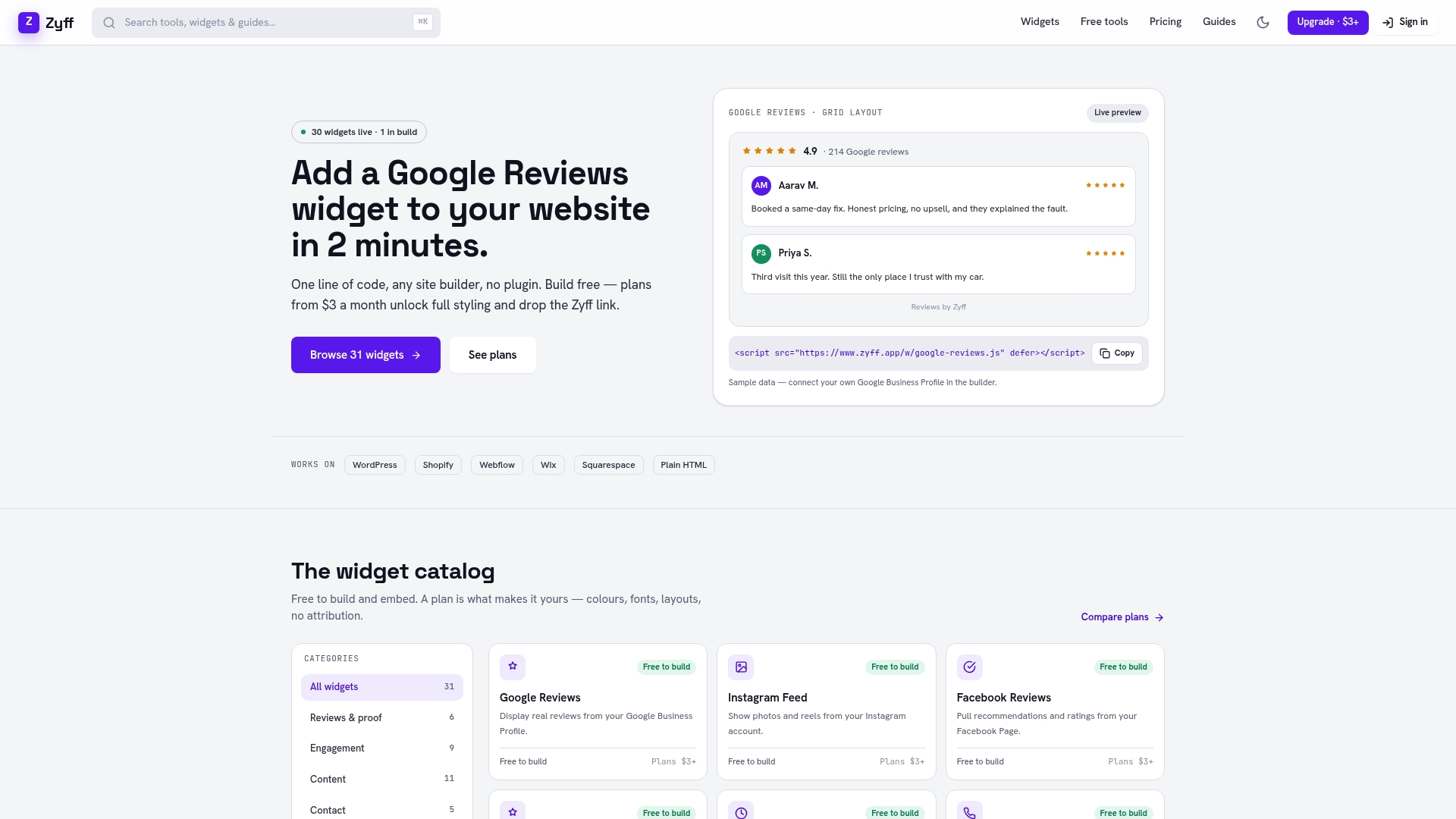
You get a no-code editor to pick channels, match icon colors to your brand, and preview the layout before it goes live. It works the same way whether your site runs on plain HTML, React, or Next.js, WordPress, Wix, or Squarespace. The free plan has no watermark and no account requirement, and paid plans starting at $3 a month unlock saved widget limits and deeper customization if you outgrow the basics. Start with the share-buttons widget directly, or browse the full widget builder if you want to pair sharing with reviews, popups, or an announcement bar on the same page.
Where to Read the Official Docs

For exact API behavior, read MDN’s Web Share API reference and web.dev’s sharing guide. For UX patterns and fallback code, see web.dev’s share patterns article. If you’re tracking referral performance after launch, Honey Badger SEO’s Google Business Profile guidance is useful for tying shared links back to local search visibility.
Sources
FAQ
How Do I Add Social Share Buttons to My Website?
Feature-detect navigator.share first, and call it inside a click handler when it’s available, since it works on most modern mobile browsers. For browsers without support, fall back to intent URLs for Twitter, Facebook, and email, or embed a no-code widget like Zyff’s share-buttons tool to handle both automatically.
Why Do I No Longer Have a Share Button on Facebook?
Facebook has changed its sharing interface multiple times, and some pages now rely on the browser’s native share sheet or a simplified share dialog instead of a dedicated button. If a share option seems missing, check whether your browser supports the Web Share API, since many sites have shifted to that instead of a custom Facebook widget.
How Do I Turn on the Facebook Share Button?
On your own website, you enable Facebook sharing by linking to the Facebook share dialog URL (facebook.com/sharer/sharer.php?u=YOUR_URL) or by embedding a widget that generates that link automatically. There’s no separate “on/off” switch. It’s a matter of whether your site includes that share link or button at all.
What Is a Share Button?
A share button is a clickable element, usually an icon or labeled button, that lets a visitor post a link to your content on a social platform, send it by email, or trigger their device’s native share menu. The two main technical approaches are the Web Share API, which opens the operating system’s own share sheet, and intent URLs, which link directly to a specific platform’s share dialog.
Does Zyff’s Share Widget Track Visitor Data?
Zyff’s share-buttons widget is built without tracking scripts by default, which sets it apart from many third-party share widgets that phone data back to analytics servers. Current pricing for saved widgets and expanded customization is listed on Zyff’s pricing page.