Live Chat Widget: Running in Five Minutes for Small Teams
Live Chat Widget: Running in Five Minutes for Small Teams
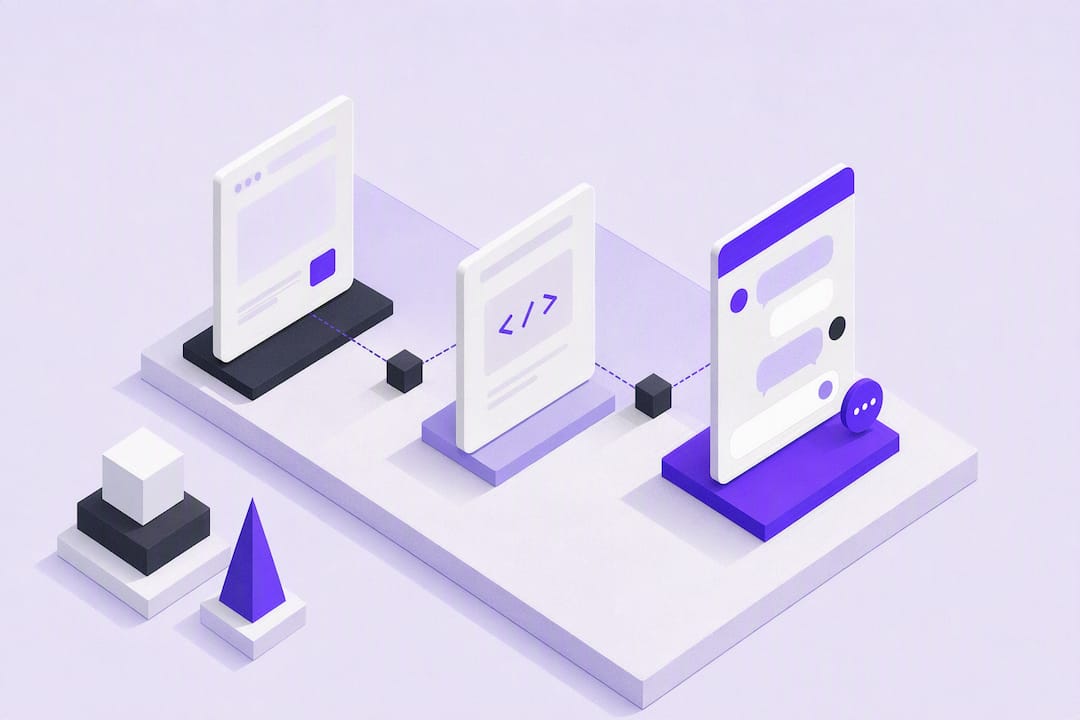
A live chat widget is a small embeddable panel, usually docked in a corner of your site, that lets visitors message your team or an AI assistant without leaving the page. If you don’t have one yet, add a lightweight, brand-matched widget now: pick a provider, grab its single script tag or CMS plugin, and drop it into a staging page before you push it live. Test it, then publish.
TL;DR:
- Customizing your chat widget to match your brand’s colors, fonts, and tone improves trust and engagement, with real-time preview tools making adjustments straightforward.
- Using an asynchronous, lightweight widget with a small payload and lazy load setup minimizes site speed impact and improves page performance.
- Prioritizing automation for routine questions and integrating with your help center, CRM, and messaging channels can enhance support efficiency without sacrificing personalized service.
- Regularly monitoring response times, chat-to-conversion rates, and automatic issue resolution ensures the widget delivers tangible business value and justifies its cost.
- Starting small with simple tools like Zyff’s free widget builder allows teams to test and optimize chat features before investing in more advanced automation or extensive customization.
Table of Contents
- What a Live Chat Widget Does for Your Website
- How Do You Choose the Right Live Chat Widget?
- How Do You Add a Live Chat Widget to Your Site?
- Customizing the Widget So It Feels Native to Your Brand
- Automation, AI Chatbots, and Integrations That Actually Help
- Keeping the Widget Fast, Private, and Actually Working
- What Ashok Sees Site Owners Get Wrong About Chat Widgets
- Try Zyff’s Widget Builder for Your Site Today
- Sources Worth Bookmarking
- FAQ
What a Live Chat Widget Does for Your Website
The core job of a live chat widget is speed. A visitor with a question about pricing or shipping doesn’t want to dig through a help center or send an email and wait a day. They want an answer while they’re still on the page, and getting one often decides whether they buy, sign up, or bounce.
That immediacy translates into a few concrete business outcomes:
- Faster support resolution. Visitors get answers in seconds instead of hours, which cuts down on abandoned carts and support tickets that pile up overnight.
- Lead capture without a form. A chat prompt on a pricing page can catch a hesitant buyer mid-decision, something a static contact form never does.
- Proactive engagement. E-commerce stores use triggered greetings (“Need help picking a size?”), SaaS products use them for onboarding nudges, and service businesses use them to book consultations directly from the chat window.
- Ticket deflection. A widget that answers common questions automatically reduces the volume hitting your support inbox.
Once it’s live, track three numbers: average response time, chat-to-conversion rate, and how many conversations get resolved without human intervention. Those three tell you whether the widget for your website is actually paying for itself or just sitting there as decoration.
How Do You Choose the Right Live Chat Widget?
Not every chat tool is built the same way, and picking wrong usually shows up months later as a slow site or a support team drowning in irrelevant integrations. Run any candidate through these checks before you commit.
- Check the technical footprint. Ask whether the script loads asynchronously, how large the gzipped payload is, and whether it uses Shadow DOM to keep its styles from colliding with yours. A widget that lazy-initializes (only loading fully after a visitor interacts with it) is far kinder to page speed than one that loads everything on first paint.
- Evaluate the product fit. Look at how much you can customize appearance and behavior, how it handles mobile screens, whether it offers automation or AI handoff, what integrations it supports, and how the pricing model scales as your team grows.
- Ask the operational questions. Where is chat transcript data stored? Does the vendor charge per seat in a way that punishes you for adding support staff? Does the script pull in a chain of third-party trackers you didn’t ask for?
Red flags worth walking away from: vendors that won’t specify data residency, “unlimited” plans that quietly cap views or saved widgets, and widgets that inject multiple external domains just to render a chat bubble.
Pro Tip: Open your browser’s network tab before you commit to any provider. If the widget script pulls in more than 200KB uncompressed or triggers a dozen third-party requests, that’s a preview of the slowdown your visitors will feel later.
Marketplace and partner documentation on distribution models also flags that enterprise-grade widgets sometimes require extra setup for private offers or multi-party billing, which matters if you’re evaluating anything beyond a straightforward embed.
How Do You Add a Live Chat Widget to Your Site?
Getting live chat on your website usually takes less engineering time than people expect. Here’s the fast path:
- Pick and embed the script. Copy the provider’s snippet (usually one
<script>tag) and paste it before the closing</body>tag, or use a plugin if your CMS supports one. - Configure greetings and position. Set the welcome message, pick a corner (bottom right is standard), and decide whether it opens automatically or waits for a click.
- Connect your inbox and agents. Route incoming chats to the right team members or channel, and set up notification alerts so nobody misses a live conversation.
- Test on staging first. Confirm the widget renders correctly, doesn’t overlap your footer or cookie banner, and sends a test message successfully.
- Publish to production. Push the change live, then watch the first real conversations closely for the first day.
CMS-specific notes make the difference between a five-minute job and an afternoon of troubleshooting:
- WordPress: most providers offer a dedicated plugin; alternatively, paste the script into a theme’s header/footer include or a plugin like Insert Headers and Footers.
- Shopify: install via the app store, which handles theme injection automatically, avoiding manual
theme.liquidedits. - Squarespace: use code injection under Settings, since Squarespace doesn’t support custom plugins the way WordPress does.
- Tag manager approach: if you already use Google Tag Manager, firing the widget script as a custom HTML tag keeps all your third-party scripts in one place, easier to audit and remove later.
Before calling it done, run through a short testing checklist:
- Load the page on an actual phone, not just a resized browser window.
- Confirm agent notifications actually fire when a test chat comes in.
- Verify the handoff from an automated greeting to a human agent works without dropping the conversation.
- Check that no personal data gets logged somewhere you haven’t accounted for.
Admin configuration guides for chat widgets walk through similar sequencing for platform-based deployments, and the pattern holds regardless of which provider you choose.
Customizing the Widget So It Feels Native to Your Brand
A chat bubble that looks like it was bolted on from a different website erodes trust before the first message is even sent. Matching your widget’s colors, fonts, and greeting tone to the rest of your site is one of the cheapest conversion improvements available, and understanding why updating brand messaging to grow your business helps position your live chat widget as a trustworthy, consistent extension of your brand.
A few things matter more than people expect.
- Colors and fonts should mirror your existing design system, not just approximate it. If your brand uses a specific shade of blue, the widget’s send button should use that exact hex code.
- Greeting copy should sound like a person, not a script. “Hi! Questions about shipping or sizing?” beats a generic “How can I help you today?” every time.
- Placement and touch targets matter on mobile. The bubble needs to sit clear of thumb zones people actually use, and it should collapse to a small icon rather than a full panel when minimized on small screens.
- Accessibility isn’t optional. ARIA labels on the toggle button, visible keyboard focus states, and text contrast that meets basic legibility standards keep the widget usable for visitors relying on screen readers or keyboard navigation.
Pro Tip: Run a quick A/B test on your greeting message alone. Swapping a generic opener for a specific, context-aware one (referencing the page the visitor is on) often moves engagement more than any color change ever will.
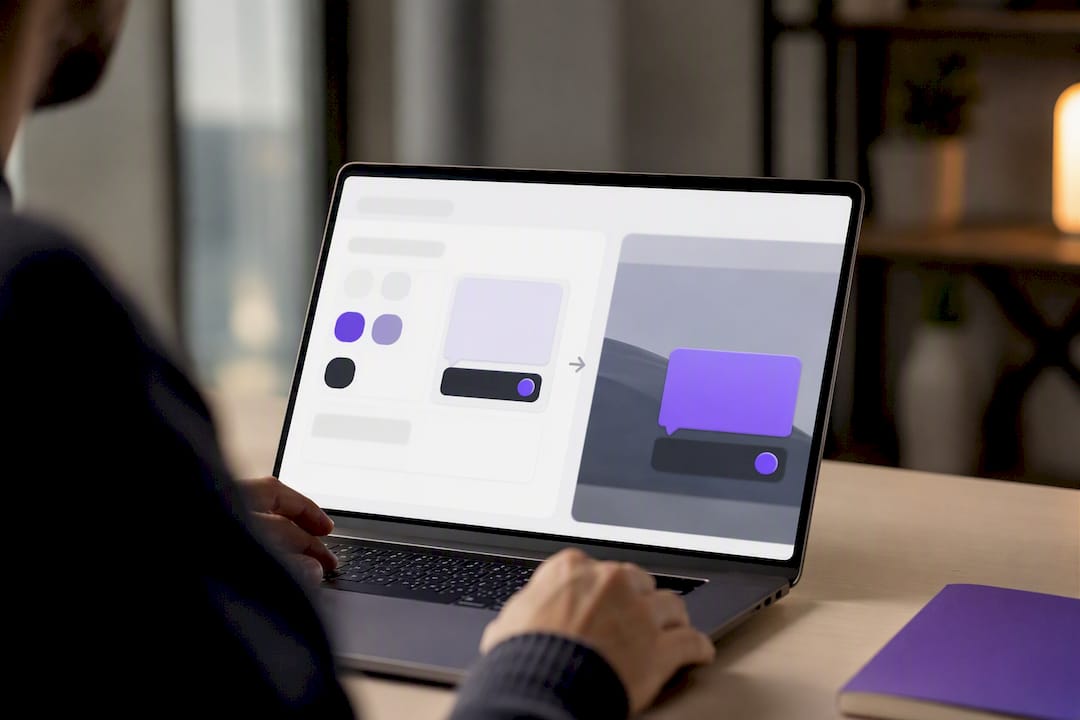
Most modern widget builders include a live preview editor, so you can see color and copy changes rendered in real time instead of guessing and reloading the page repeatedly.
Automation, AI Chatbots, and Integrations That Actually Help
Automation earns its place when it handles the predictable stuff: business hours, shipping timelines, return policies, pricing tiers. Anything that requires judgment, an apology, or a discretionary decision should route straight to a human. A reasonable rule of thumb: automate the first response and any FAQ-shaped question, but hand off the moment a visitor expresses frustration or asks something outside the scripted intents.
Integrations worth prioritizing:
- Knowledge base ingestion, so the bot can answer from your existing help docs instead of forcing you to write a separate FAQ from scratch.
- CRM syncing, so a chat conversation turns into a tracked lead automatically instead of living only in a chat log.
- Messaging channel bridges like WhatsApp, Telegram, or Messenger, letting visitors continue a conversation on the app they already use.
- Analytics and event tracking, so chat interactions show up alongside the rest of your conversion funnel data.
Here’s the shortcut most teams miss: you don’t need to write a chatbot’s answers from a blank page. Point it at the FAQ page, product descriptions, or help center you already have, and let it pull from that. It saves the manual work of duplicating content you’ve already written, and it keeps the bot’s answers consistent with what’s published elsewhere on your site.
Keeping the Widget Fast, Private, and Actually Working
Performance problems with chat widgets almost always trace back to one mistake: loading the entire widget synchronously on every page, whether or not a visitor ever opens it. Preferring async script loading, keeping the gzipped payload small, and lazy-initializing the full chat interface only after a click protects your Core Web Vitals score and keeps mobile load times reasonable.
A quick performance note: widgets that use Shadow DOM to isolate their styles avoid the CSS conflicts that cause half the “why does my widget look broken” support tickets vendors receive.
Privacy needs equal attention. Chat transcripts often count as personal data under GDPR and CCPA, so you need a clear policy on how long transcripts are stored, whether they’re shared with third-party processors, and how visitors can request deletion. If you’re not sure where your business stands, loop in whoever handles compliance before launch, not after.
Common troubleshooting fixes:
- Widget not appearing: check for a JavaScript error blocking the script, or a Content Security Policy header rejecting the domain.
- Overlapping with site elements: usually a z-index conflict, fixed with a CSS override rather than a full redesign.
- Mobile layout breaking: confirm the widget respects safe-area insets on iOS devices with notches or home indicators.
- Missing agent notifications: verify browser notification permissions weren’t silently denied during testing.
What Ashok Sees Site Owners Get Wrong About Chat Widgets
Most site owners treat a chat widget like a checkbox: install it, forget it, move on. That’s backwards. The install is the easy five minutes. The part that actually determines whether it converts anyone is the greeting copy, the response time, and whether it looks like it belongs on your site instead of bolted onto it as an afterthought.
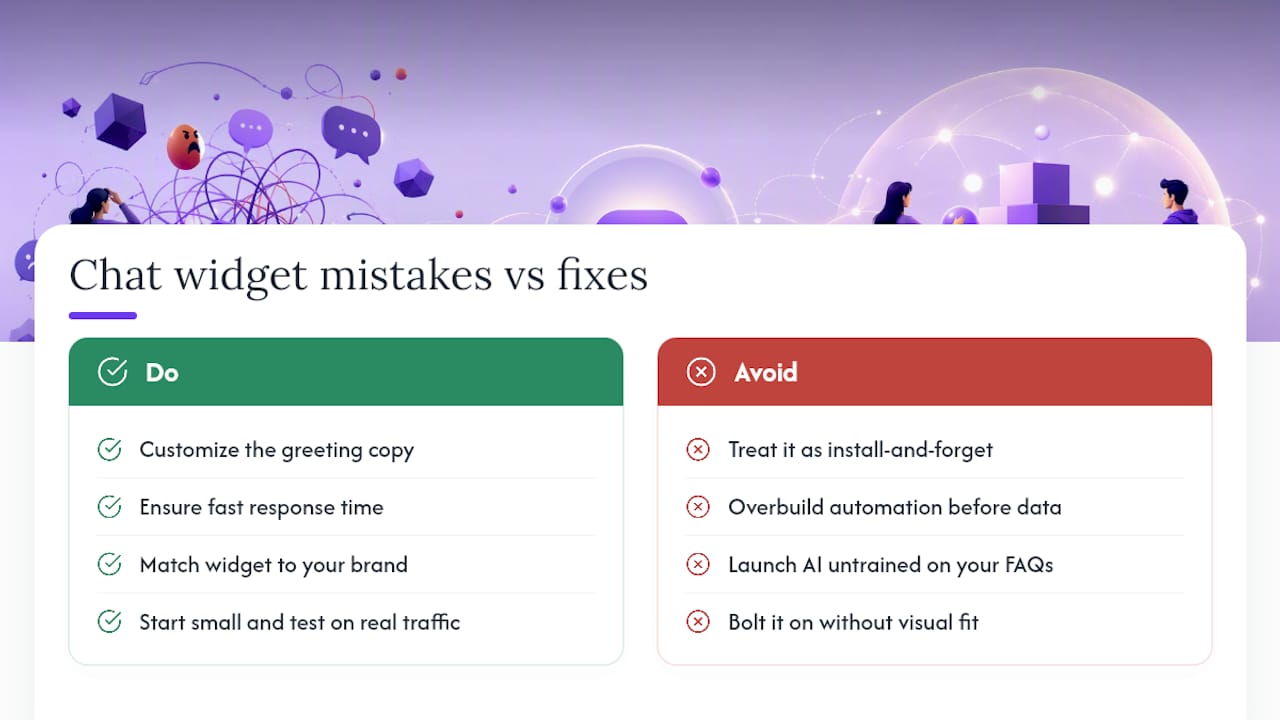
The other mistake worth calling out: overbuilding automation before you have real conversation data. Teams launch an AI chatbot trained on nothing, watch it give generic answers, and conclude “chat doesn’t work for us.” It wasn’t the chat widget that failed. It was skipping the step of feeding it your actual FAQ content and support history first.
For a small team, the simplest path is often the right one. Zyff’s chat widget supports integrations like Telegram and Messenger, and pairing it with a free WhatsApp chat button gives visitors a channel they already trust, without weeks of engineering. Start small, match your brand, test it on real traffic, then decide what automation is worth adding.
— Ashok
Try Zyff’s Widget Builder for Your Site Today
You can easily add a chat widget with just one line of code to any site builder, enabling small teams without developer resources to get started quickly.
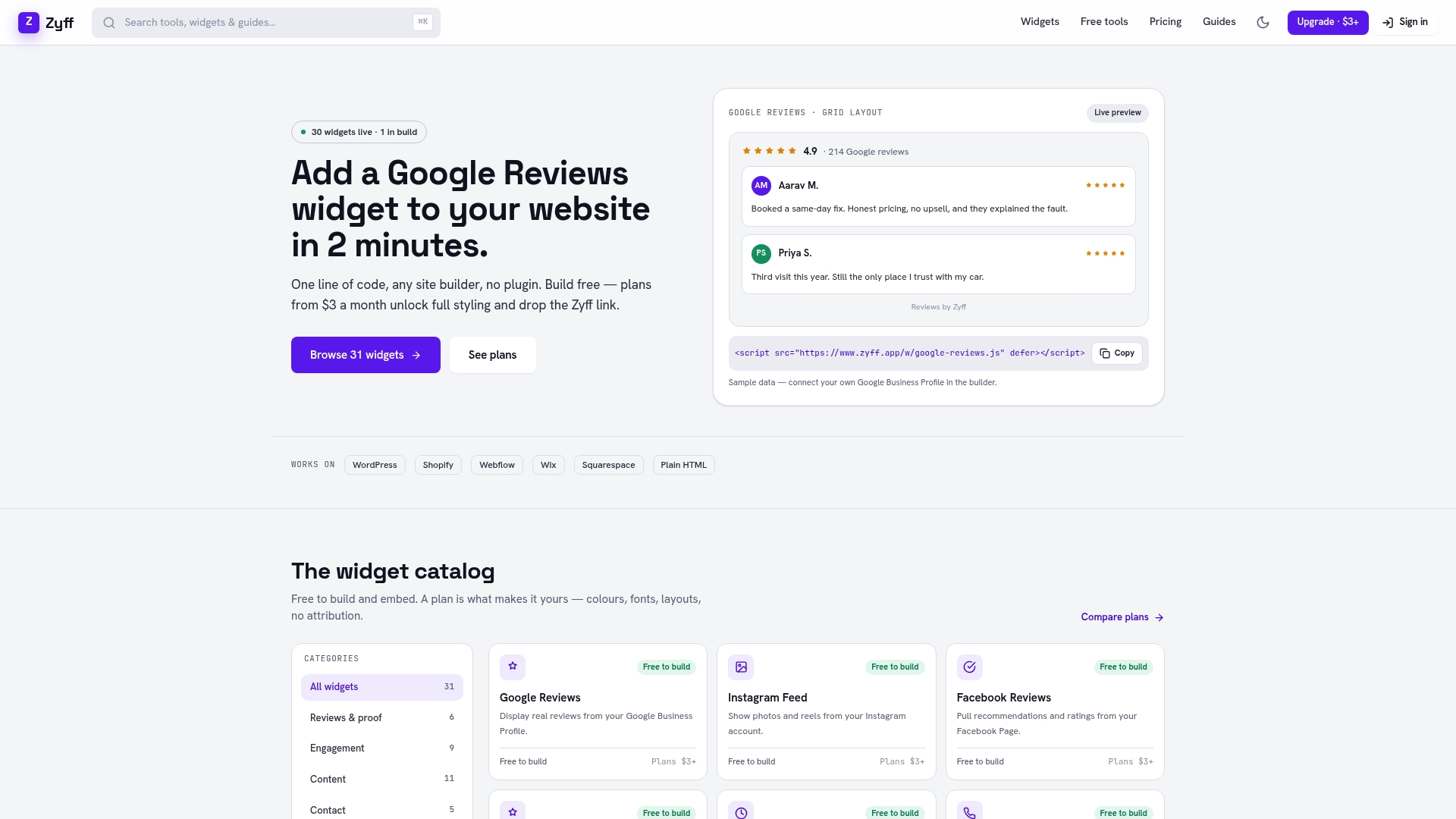
The chat widget integrates with Telegram and Messenger out of the box, and it sits alongside a free WhatsApp chat button and a free popup widget if you want to layer in proactive prompts later. All of Zyff’s numerous free tools stay unmetered no matter what plan you’re on, so you can build and test without hitting a paywall halfway through.
Start on the Widget Builder for free. If you outgrow the free tier and need more saved widgets, higher view limits, or branding removed, plans start at $3 a month on the pricing page. Build it, preview it, embed it, and see how visitors respond before you decide whether to upgrade.
Sources Worth Bookmarking
- Develop and customize the live chat widget for appearance and Live Editor configuration details.
- Configure a chat widget in Dynamics 365 Contact Center for step-by-step deployment guidance.
- Microsoft Marketplace developer resources for embed and performance patterns.
FAQ
How Do I Create a Chat Widget for My Website?
Pick a provider or widget builder, customize the colors and greeting to match your brand, then copy the generated script tag into your site’s footer or use a CMS plugin. Test it on a staging page first to confirm it loads correctly and connects to your inbox before publishing.
How Do I Turn On Live Chat Once It’s Installed?
Most widgets have a toggle in the provider’s dashboard that activates the chat function and starts routing conversations to your team. Confirm your agents are set to “available” and that notification settings are turned on so incoming chats don’t get missed.
What Does a Live Chat Widget Look Like on a Website?
It typically appears as a small circular or rectangular icon fixed in a bottom corner of the screen, expanding into a chat panel when clicked. Modern versions match the site’s brand colors and fonts, following the same customization approach documented for live chat platforms.
What Is a Free Website Chat Widget?
A free chat widget lets you add live messaging to your site without a subscription, though free tiers often cap usage or add branding. Zyff’s chat widget is free to build and embed, with paid plans starting at $3 a month for higher limits and branding removal, listed on the pricing page.