Small Wix Sites: Add Google Reviews in 10 Minutes With One Line Embed
Small Wix Sites: Add Google Reviews in 10 Minutes With One Line Embed

The fastest way to show Google reviews on a Wix site is to install a Google Reviews widget from the Wix App Market or embed a single-line widget code, and we recommend the Zyff embed when you want full control and a no-code install. Either route needs a published Google Business Profile to pull reviews from. Keep Google’s review policies in mind too, since offering incentives for reviews can get them removed.
TL;DR:
- Using a Google Reviews widget from the Wix App Market takes about ten minutes and requires no coding, but reviews need to be pulled from a published Google Business Profile.
- Embedding a widget via Zyff provides more design control and allows site-wide placement without depending on app updates or restrictions.
- Keeping reviews synced automatically and filtering star ratings helps ensure the feed remains current and authentic, boosting conversions.
- Google prohibits offering incentives in exchange for reviews and recommends asking customers for honest feedback without conditions or rewards.
- Troubleshooting common issues involves confirming profile publication, enabling asynchronous loading, and ensuring correct location selection to prevent mismatched reviews.
Table of Contents
- Install a Google Reviews widget from the Wix App Market
- Embed a Google Reviews widget using Zyff for a no-code install
- Getting the widget’s settings right
- What Google’s review policies actually prohibit
- Fixing the most common widget problems
- Why an embeddable widget often fits small Wix sites better
- Get a free Google Reviews widget built for Wix
- FAQ
- Sources
Install a Google Reviews widget from the Wix App Market
The quickest way to get reviews live is through Wix’s own app ecosystem. It takes about ten minutes and does not require touching any code.
- Open your site in the Wix Editor and click Add Apps in the left-hand panel.
- Search “Google Reviews” and browse the available apps. Several free and paid options exist; each has its own layout templates.
- Click Add to Site on the app you want, then follow the prompt to connect a review source.
- Locate your Google Business Profile by searching your exact business name and full address, or by pasting your Google Maps listing link directly into the setup field.
- Set your filters: choose a minimum star rating if you want to hide lower scores, and pick a sort order such as most recent first.
- Adjust layout and header settings before publishing.
A few configuration choices matter more than they look:
- Choose between grid, carousel, or list layout depending on how much space your page has.
- Match the widget’s colors and fonts to your site theme so it does not look bolted on.
- Toggle on a “leave a review” button if the app supports it, so the widget also generates new reviews.
- Use manual hiding to remove a specific review without filtering out every review at that star level.
Once configured, preview the page in both desktop and mobile view inside the Wix Editor. Review widgets often render differently on narrow screens, with carousels collapsing into single-column stacks. After you are satisfied, publish the site and open the live page to confirm the feed is pulling real reviews rather than placeholder content. According to a practical how-to guide for adding Google reviews to Wix, the core steps across most apps are the same: install, connect your profile, filter, preview on mobile, and publish.
Before connecting your profile, it is worth tightening up the profile itself. A Google Business Profile optimization checklist covers categories, hours, and photos that affect how complete your review source looks once it is embedded.

Embed a Google Reviews widget using Zyff for a no-code install
When an App Market app feels limiting, embedding a widget directly gives you more control over design and avoids re-adding an app every time you switch page builders. This is the route we built for.
- Create or open a Google Reviews widget in the Zyff widget builder. Choose your review source, set a minimum star filter, and pick a layout.
- Copy the single line of embed code the dashboard generates. Accounts with no payment provide the full widget function; paid plans add additional features such as branding removal, increased saved widgets, and enhanced filtering.
- In the Wix Editor, add an HTML iframe or embed element from the Embed Code menu, then paste the code into it and resize the box to fit your layout. For placement across every page, Wix’s code injection settings work the same way.
- Preview the widget on desktop and mobile inside Wix, then publish. New reviews sync automatically afterward without any further editing.
Pro Tip: Place the embed element inside a strip section rather than a full-width page section so you can resize it without disturbing the rest of your layout.
Our Wix-specific install guide walks through the embed element step with screenshots if you want a visual reference, and the general Wix widget installation notes cover site-wide placement for anyone adding more than one widget type. An embed code tends to make more sense than an App Market app when you want one consistent widget design across multiple site builders, or when you want to drop the “powered by” branding that many free review apps include by default.
Getting the widget’s settings right
A review widget only helps conversions if it stays current and loads fast. A stale feed with no update in months looks worse than no widget at all.
- Keep syncing automatic rather than manual, so reviews refresh daily without your having to log in and republish.
- Set a minimum star filter if you use one, but leave a little variety in the feed. A page of nothing but five-star reviews reads as curated rather than real.
- Favor widgets that load asynchronously and lazy-load the review feed, so the rest of the page renders before the widget calls out to fetch reviews.
- Check contrast between review text and your background color, and confirm the widget can be tabbed through with a keyboard.
- Place the widget where buying decisions happen, whether that is your homepage hero, a product page, or a dedicated testimonials page, and pair it with a visible link to leave a new review.
Industry guidance recommends prioritizing automatic syncing and star-rating filters when choosing a review widget, so the feed stays fresh without manual upkeep, according to WebsitePlanet’s Wix review guide. After publishing, run your page through Core Web Vitals testing to confirm the widget is not dragging down load time.
What Google’s review policies actually prohibit
Before you start soliciting more reviews to fill out the widget, know where the line sits. Google’s Business Profile policies prohibit offering incentives such as discounts, free products, or payment in exchange for reviews, and violations can lead to review removal or profile suspension.
- Never offer a discount, free item, or payment in exchange for a review, positive or otherwise.
- Only ask customers to share a genuine experience; mass-posting or review-gating schemes violate Google’s terms.
- Keep your Business Profile website link pointed at your actual site, not a redirect or landing page unrelated to the listing.
- When in doubt, ask customers to leave an honest review and leave it at that. No conditions, no exchange.
Fixing the most common widget problems
Most issues trace back to either the profile connection or caching.
- If no reviews appear, confirm your Google Business Profile is published and publicly searchable, then redo the widget search using your exact address or a Google Maps place link instead of just a business name.
- If the widget loads slowly, enable asynchronous script loading if your tool offers it, reduce the number of reviews shown at once, or switch to a cached snapshot instead of a live call on every page load.
- If reviews from the wrong location show up, reselect your profile directly from the Maps link rather than a name search, since duplicate listings are common for multi-location businesses.
- If the layout breaks on phones, open Wix’s mobile preview, reduce the widget’s max width, republish, and clear your browser cache before checking again.
Why an embeddable widget often fits small Wix sites better
Small sites rarely need an app’s full settings menu. An embed gives you one lightweight element you control directly, without an extra app dependency. App Market apps still make sense when you want built-in support and the fastest possible setup with zero configuration.
— Ashok
Get a free Google Reviews widget built for Wix
We built Zyff so adding a Google Reviews feed to Wix takes one line of code, not a new app subscription. Every widget is free to build and embed, with paid plans only needed once you want extra saved widgets, deeper filtering, or branding removed.
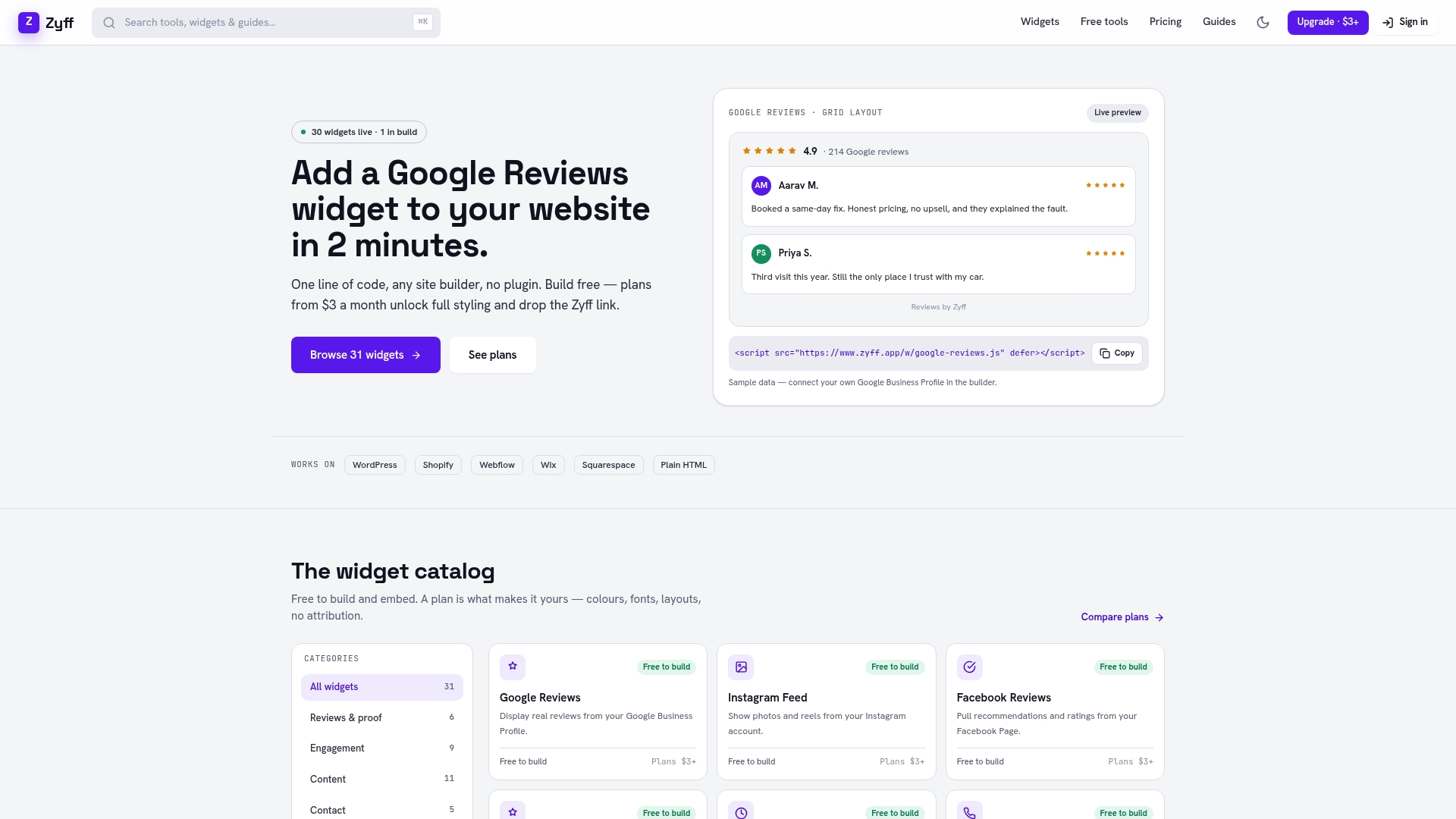
Start by building your widget on the Zyff widget builder, then follow our Wix install instructions to drop the embed code into your site. If you later want to compare plans, our pricing page breaks down what each tier unlocks.
- Build and preview the widget before committing to any plan.
- Paste one line of code into Wix’s embed element and resize to fit.
- Upgrade only when you need more saved widgets or branding removal.
FAQ
Can you add Google reviews to a Wix website?
Yes. You can install a Google Reviews app from the Wix App Market or embed a widget’s code directly using Wix’s HTML embed element. Both methods connect to your Google Business Profile and display live reviews on any page.
What is the downside of Wix?
Wix limits some design flexibility compared to custom-coded sites, and heavier third-party apps can slow page load if not configured carefully. A lightweight embed with asynchronous loading tends to avoid that slowdown better than a feature-heavy app.
Is it legal to put Google reviews on my website?
Displaying genuine Google reviews on your own site is standard practice and not restricted by law, but you must follow Google’s own policies on how reviews are solicited and represented. Google prohibits incentivizing reviews and can suspend a profile or remove reviews for violations.
What are people saying about Wix websites in reviews?
Feedback on Wix generally centers on its ease of setup for non-coders and its drag-and-drop editor, alongside some limits on advanced customization once a site grows complex. Keeping your Business Profile accurate, including the correct website link, helps make sure any reviews about your business point to the right site, per Google’s representation guidelines.
Sources
- Prohibited & restricted content - Google Business Profile Help
- How to Add Google Reviews to Wix Website — WebsitePlanet