Add Google Reviews to Squarespace in Minutes, No Plugin Needed
Add Google Reviews to Squarespace in Minutes, No Plugin Needed

Three methods work: a third-party widget, a manual Quote block, or a live Google Maps embed for developers comfortable with the Places API. For most Squarespace owners, a widget is the right call because it auto-updates and takes minutes to install. Open a widget builder like Zyff’s Google Reviews widget, or if you’d rather build manually, confirm you have admin access to your Google Business Profile first.
TL;DR:
- Most small business owners should use a third-party widget because it updates reviews automatically and takes only minutes to install.
- Manual quote blocks offer editorial control but require manual updates for each new review, making them suitable for small sites with few reviews.
- Developers needing a live map or custom data should utilize the Google Maps embed or the Places API, which requires coding and API management.
- Review placement influences credibility, with carousels on the homepage, grids on service pages, and badges near checkout for maximum impact.
- Common display issues stem from using the wrong block type or an unverified, private Google Business Profile, which need checking first.
Table of Contents
- Which Method Should You Actually Use?
- Method 1: Install a Google Reviews Widget on Squarespace
- Method 2: Manually Embed Reviews with Quote Blocks
- Method 3: Google Maps Embed or the Places API (For Developers)
- Where to Place Reviews for Maximum Impact
- Fix It Fast: Why Your Reviews Aren’t Showing
- Curated Highlights or Full Transparency: What Actually Builds Trust
- Get Zyff’s Google Reviews Widget Running Today
- Sources
- FAQ
Which Method Should You Actually Use?
Squarespace has no native Google Reviews feature, so the right choice depends on how much control you want versus how much time you’re willing to spend maintaining it, a point Jotform’s setup guide makes clear from the start.
- Beginners and busy owners: a widget. It connects to your Google Business Profile, updates on its own, and takes about five minutes to install.
- DIY marketers who want curated quotes: manual Quote blocks. Zero cost, zero code, but you’re copying and pasting every update yourself.
- Developers who need a live map or custom data: the Places API or a Maps embed. More flexible, more setup, and it comes with quota limits and security considerations.
Widgets win on speed and upkeep. Manual blocks win on editorial control. The API wins on flexibility, if you’re willing to write the code.
Method 1: Install a Google Reviews Widget on Squarespace
This is the fastest path, and it’s the one most small business owners land on. Before you start, confirm three things: your Google Business Profile is public, you have admin access to your Squarespace site, and your Squarespace plan allows Code Blocks or code injection.
- Open a widget builder and search for your business by name and full street address. Widget tools use that combination, not just the business name, to locate the correct listing, according to WPDean’s Squarespace guide.
- Pick a layout: grid for a testimonials page, carousel for a homepage banner, or a compact badge for a sidebar or footer.
- Filter by star rating if you want to hide anything below four stars, then adjust colors and fonts to match your site.
- Copy the embed code the builder generates.
- In Squarespace, go to the page you want, click Add Block, choose Code, paste the embed code, and click Save.
Most widgets load the first batch of reviews within seconds, but new reviews typically take a day or two to sync, depending on the provider’s refresh schedule. Test your install by opening the page in an incognito window so you’re not looking at a cached version of your own site.
Pro Tip: If you want the widget on every page instead of just one, skip the per-page Code Block and add the script through Squarespace’s Code Injection settings in the footer. It loads once site-wide instead of duplicating the script on every page, which keeps load times cleaner.
Method 2: Manually Embed Reviews with Quote Blocks
Skip the widget entirely if you’d rather hand-pick five glowing reviews for your homepage instead of showing everything Google has on file. This works well for small sites and anyone who wants tight editorial control over what visitors see first.
- Click Add Block, choose Quote, and paste in the review text along with the reviewer’s name.
- Link back to the original review on Google so visitors can verify it’s real.
- Add alt text if you’re pairing the quote with a headshot or logo, and keep the reviewer’s name visible rather than burying it in a caption.
The tradeoff is maintenance. Nothing here updates automatically, so every new testimonial means another manual edit.
Method 3: Google Maps Embed or the Places API (For Developers)
A live Maps embed is the simplest of the two advanced options. Open Google Maps, find your business listing, click Share, then Embed a map, and copy the HTML it gives you. Paste that into a Squarespace Embed or Code Block, and you get a live view showing your star rating and review count alongside a map, a setup detailed in Jenx Web Design’s walkthrough.
The Places API gives you more control but demands real development work:
- Get your business’s Place ID and enable the Places API in your Google Cloud console.
- Request review data through the API rather than scraping it, and sanitize what comes back before displaying it.
- Cache responses server-side on a schedule instead of calling the API on every page load, which protects you from quota spikes.
- Restrict your API key to specific domains and never expose it in client-side code, since an unrestricted key is an open invitation for misuse.
This route only makes sense if you already have a developer or you’re comfortable writing that caching layer yourself.
Where to Place Reviews for Maximum Impact
Placement matters as much as the widget itself. A grid layout works well on a dedicated testimonials or About page, a carousel fits nicely just below the hero on your homepage, and a small badge belongs near your checkout or contact form where it can nudge a hesitant buyer.
- Homepage: carousel, above the fold if possible.
- Service or product pages: grid, filtered to reviews mentioning that specific service.
- Checkout or contact page: a compact badge showing your overall rating.
One technical wrinkle: some widget providers reserve JSON-LD schema output for paid tiers, and iframe-based embeds often don’t expose that schema to the host page at all, according to BlooTrue’s widget documentation. If rich snippets in Google search results matter to your SEO strategy, check whether your widget writes structured data to the page you’re embedding it on, not just to the widget itself. Design-wise, keep review cards legible on mobile. Cramped five-star icons and truncated text on a phone screen do more damage to trust than showing no reviews at all.
Fix It Fast: Why Your Reviews Aren’t Showing
Most display failures trace back to one of four causes, and they’re worth checking in order.
- Check your Google Business Profile is public. If it’s set to private or unverified, no widget can pull reviews from it.
- Confirm you used a Code Block, not a Text Block. Squarespace’s Text Block strips script tags automatically, which is the single most common reason an embed shows up blank. Threads on the Squarespace community forum flag this repeatedly.
- Double-check the business match in your widget builder. If your business has multiple locations or a similar name to another listing nearby, the widget may have connected to the wrong Place ID.
- Test in incognito mode and on an actual phone. Ad blockers on your own browser can silently hide widgets, giving you a false impression that something’s broken when it isn’t.
Run through those four before assuming the widget itself is faulty.
Curated Highlights or Full Transparency: What Actually Builds Trust
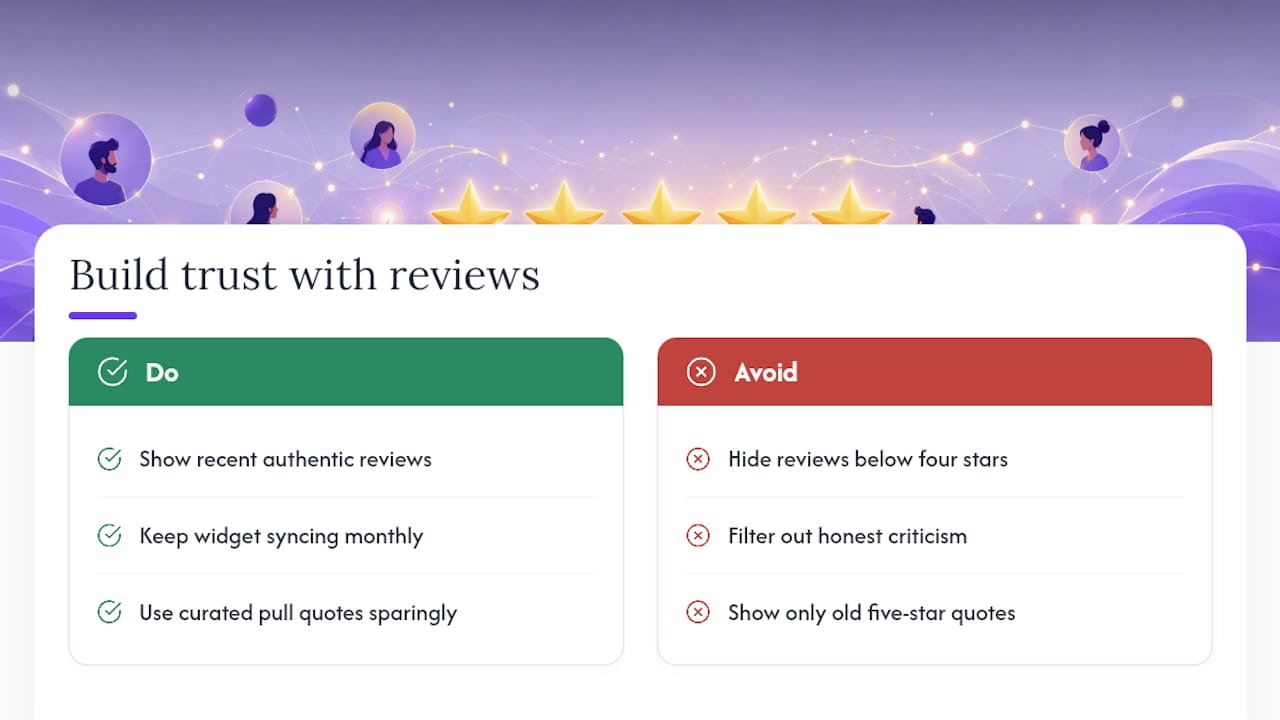
Show recent, authentic reviews as your default. Curated pull quotes have their place on a landing page built for conversion, but hiding every review below four stars long-term reads as manufactured, and visitors notice. Filtering out spam or off-topic comments is fair; filtering out honest criticism is not.
Consistency matters more than perfection here. A widget that keeps syncing new reviews month after month does more for both search visibility and buyer confidence than a static wall of five-star quotes frozen from two years ago.
— Ashok
Get Zyff’s Google Reviews Widget Running Today
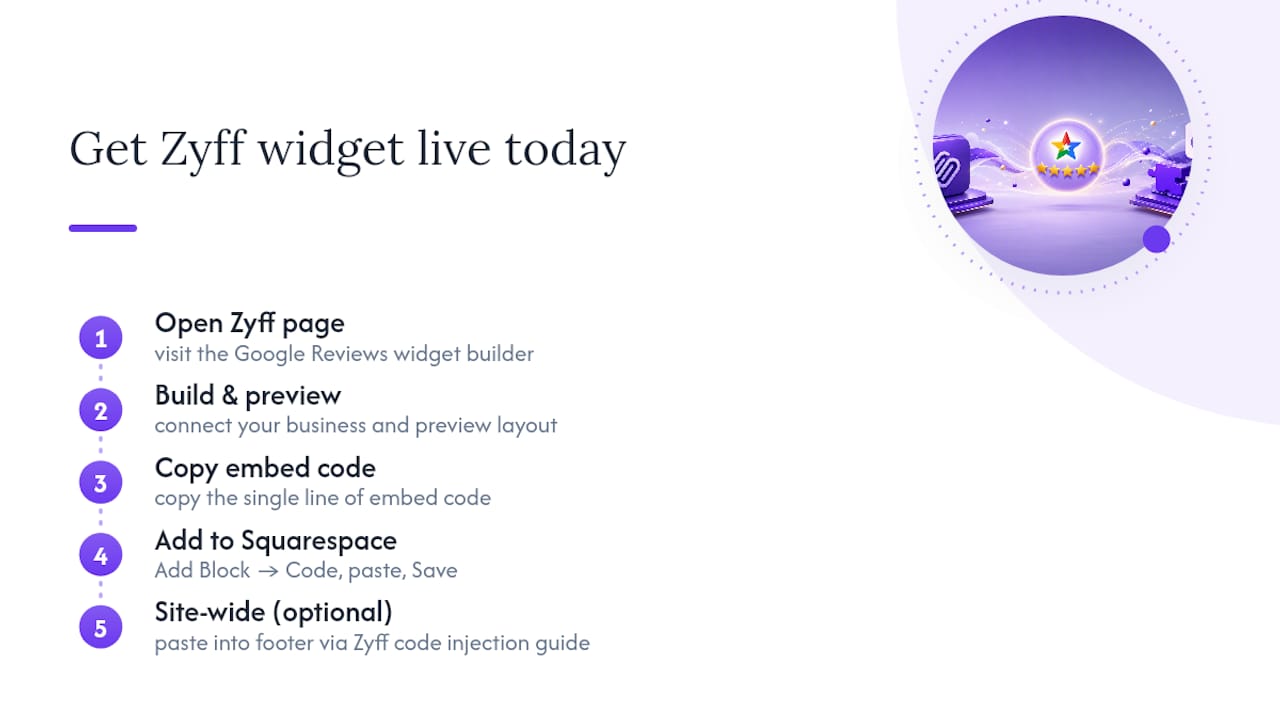
A widget builder gives you a single line of embed code, a live preview before you commit to anything, and layout and color controls you’d expect from a paid tool, without gating the basics behind a subscription.

Getting it live takes four steps: open Zyff’s Squarespace Google Reviews widget page, build and preview your widget with your business connected, copy the embed code, then in Squarespace click Add Block, choose Code, paste, and Save. If you want that widget running site-wide instead of on a single page, Zyff’s Squarespace code injection guide walks through footer placement so it loads once across every page instead of duplicating per page.
Every widget is free to build and preview, with many other tools, from popups to pricing tables, unmetered regardless of plan. If you eventually want Zyff branding removed or higher monthly view limits, Basic starts at $3 per month, with Pro, Premium, and Enterprise tiers above it for teams that need more. Start with the free build, see how it looks on your actual pages, and upgrade only if you need to.
Sources
For deeper technical detail beyond this walkthrough, Feedspace’s how-to covers similar install steps with screenshots, and Wexla’s web design blog is a solid resource for readers who want to go further into schema and on-page SEO.
FAQ
How Do I Add Google Reviews to Squarespace?
The fastest way is a third-party widget: connect your Google Business Profile, customize the layout, copy the embed code, and paste it into a Squarespace Code Block. Manual Quote blocks and a Google Maps or Places API embed are the other two options, each with different tradeoffs on effort and automation, as Jotform’s guide explains.
Can I Show Google Reviews on My Website?
Yes, though Google doesn’t offer a built-in embed tool for this, so you need a widget, a manual copy of the review text, or an API integration to display them. A widget is the simplest route for most site owners because it pulls and updates reviews automatically.
Why Aren’t My Reviews Showing Up After I Pasted the Code?
The most common cause is pasting the embed script into a Text Block instead of a Code Block, since Text Blocks strip out script tags automatically. Also confirm your Google Business Profile is public and that the widget builder matched the correct business listing.
What’s the Downside of Squarespace for This Kind of Setup?
Squarespace has no native Google Reviews integration, so you’re always relying on a third-party widget, a manual embed, or custom code rather than a built-in feature. It also restricts full code injection to certain plans, which matters if you’re on a lower tier and want site-wide widgets.
Does Zyff’s Widget Cost Anything to Use on Squarespace?
Building and previewing a Google Reviews widget with Zyff is free, and the free tools stay unmetered regardless of plan. Paid plans start with Basic at $3 per month for readers who want Zyff branding removed or higher usage limits.