FAQ Schema Markup: One Line Accessible FAQ Embeds for Small Teams
FAQ Schema Markup: One Line Accessible FAQ Embeds for Small Teams

An embeddable FAQ widget is a plug-and-play accordion you drop into a page with a single line of code, letting visitors click a question and see the answer expand in place. For most small sites, the fastest path is that one-line embed; for a short, static FAQ that never changes, native <details> and <summary> tags do the job with zero JavaScript. A tool like Zyff covers the first case in minutes.
TL;DR:
- Embeddable FAQ widgets are quick to implement with a single code line, especially for frequently updated content across multiple pages.
- Accessibility requires using proper semantic elements like heading tags and buttons, with correct ARIA attributes and hiding techniques to ensure screen reader compatibility.
- Lazy-loading scripts and reserving container space before load prevent layout shifts that harm user experience and Core Web Vitals scores.
- Native HTML
<details>and<summary>tags provide an accessible, low-maintenance solution for static, single-page FAQs without JavaScript.- Using tools like Zyff allows small teams to deploy styled, accessible FAQ accordions rapidly without deep technical expertise or rework.
Table of Contents
- Why Add an Embeddable FAQ Widget to Your Site?
- Accessibility and UX Checklist for FAQ Accordions
- How to Embed a One-Line FAQ Widget on Your Site
- Performance and Security Checks Before You Go Live
- Native Disclosure vs. an Embeddable Widget: Which One Fits?
- Overview of FAQ Schema Markup and Its Role in SEO
- How to Set Up a Working FAQ Accordion the Right Way
- Common Mistakes That Break FAQ Accordions
- How FAQ Content Affects Search Results and Visibility
- What to Keep in Mind From Google’s Guidance on FAQ Content
- Tools to Check Your FAQ Accordion Works Correctly
- Priorities for a Small Team Shipping FAQs
- Get a FAQ Accordion Live Today With Zyff
- Sources
- FAQ
Why Add an Embeddable FAQ Widget to Your Site?
A well-built FAQ accordion earns its keep in two ways: it answers visitors faster, and it takes pressure off your support inbox. Someone hunting for your return policy or shipping timeline doesn’t want to read six paragraphs. They want to click, scan, and move on. NN/g’s research on desktop accordions confirms that accordions work best exactly for this kind of scan-and-find task, not long-form reading.
The bigger win for small teams is centralized control. Update one widget and every page that embeds it reflects the change instantly.
A widget makes sense when:
- You run a multi-page site or manage FAQs across several properties.
- Your answers change often (pricing, hours, shipping cutoffs, policy tweaks).
- Nobody on your team touches code, and you need a designer or store owner to edit content directly.
- You want consistent styling without rebuilding the same accordion markup on every page.
If none of that applies, keep reading. Native HTML might be all you need.
Accessibility and UX Checklist for FAQ Accordions
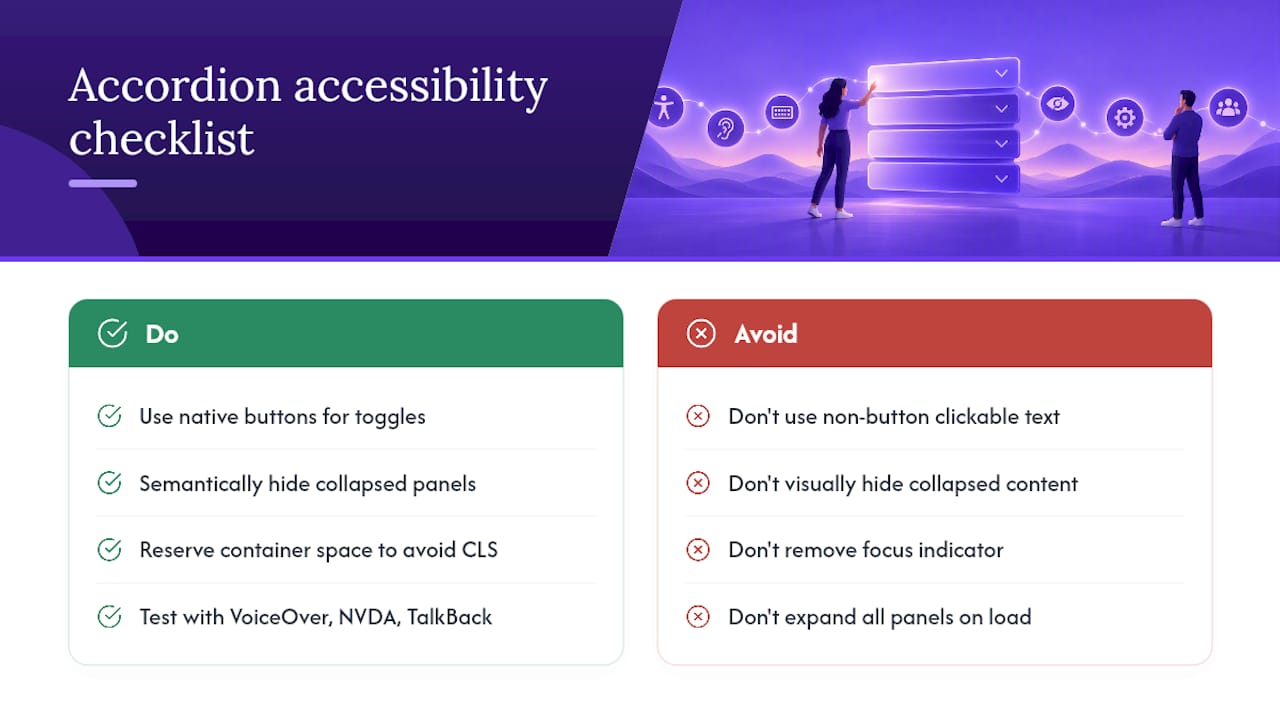
Here’s where most homemade accordions fail: they look fine and work terribly for anyone using a keyboard or screen reader. Baymard’s accordion research documents this as one of the most common interface failures on ecommerce and content sites, usually because developers treat the question text as decorative rather than as an actual interactive control.
Run through this before you ship anything:
- Wrap each question in a heading (
<h3>typically), with the clickable control living inside it, not next to it. - Use a real
<button>element inside that heading. A<div>with a click handler is not keyboard focusable and announces nothing to assistive tech. - Toggle
aria-expandedon the button (true/false) and connect it to the panel witharia-controls, or skip the manual work entirely with native<details>/<summary>, which handles this automatically. - Hide collapsed panels properly. Use
display: none, thehiddenattribute, or native disclosure semantics. Don’t just squash the panel withmax-height: 0and call it hidden. It’s still sitting in the accessibility tree, and screen readers will read it anyway. - Add a visual affordance. A caret or plus/minus icon that flips on open. For FAQ pages with more than a handful of items, NN/g specifically recommends adding Expand All / Collapse All controls so users aren’t stuck clicking one at a time.
- Test with a keyboard alone. Tab to each question, hit Enter or Space, confirm focus stays visible and logical.
- Test with real screen readers. VoiceOver on macOS/iOS, NVDA on Windows, TalkBack on Android. Each announces expand/collapse state slightly differently, and that’s exactly why testing across all three matters.
Pro Tip: If you’re short on dev time, native <details>/<summary> gives you correct button semantics, aria-expanded behavior, and keyboard support automatically. You inherit accessibility instead of building it.
How to Embed a One-Line FAQ Widget on Your Site
Getting a working accordion live takes less time than writing the FAQ content itself. Here’s the sequence that avoids rework later.
Step 1: Preflight your content. Pick your top customer questions. Real ones, pulled from support tickets or sales conversations, not guesses. Write tight Q&A pairs. Decide whether the first item opens by default (usually yes, it signals interactivity) and cap how many items show before a “load more” or pagination kicks in.
Step 2: Grab your embed snippet. In a builder like Zyff’s widget builder, you design the FAQ accordion, preview it, and copy a single script tag. Paste that into your site’s custom code area, footer, or the specific page’s HTML.
Step 3: Set a fixed container size. Give the widget’s wrapper a defined width and a reasonable minimum height before the script loads. Skip this and you’ll see the page jump the moment the widget renders, which directly hurts your Cumulative Layout Shift score.
Step 4: Handle platform specifics. Where you paste the snippet depends on your builder:
- On Wix or Squarespace, use the custom code injection panel rather than editing a template file directly.
- On Webflow, the footer code section keeps the script out of individual page embeds and applies it site-wide.
- On plain HTML, React, or Next.js sites, drop the script tag wherever you’d normally load a third-party widget, ideally near the closing
</body>tag.
Zyff’s platform-specific install guides walk through the exact placement for each of these setups.
Step 5: Match your site’s look. Adjust focus outlines so keyboard users can see where they are, keep text-to-background contrast at a readable level, pick icons that match your existing UI language, and set the font to inherit your site’s typography instead of the widget’s default.
Performance and Security Checks Before You Go Live
An FAQ widget that slows down your page or opens a security gap isn’t worth the convenience. Run these checks before launch, not after a customer complains.
Lazy-load the script. Don’t let the widget’s JavaScript block your initial page render. Web recommends loading a lightweight facade first and firing the full script only when the widget scrolls into view, typically triggered with an IntersectionObserver.
Lock in your container dimensions. This bears repeating because it’s the single most common Core Web Vitals mistake: reserve the widget’s space in your layout before its script runs. That prevents the surrounding content from jumping once the widget paints.
Check your Content Security Policy. If your site enforces a CSP, confirm the widget’s script domain is allow-listed, or it simply won’t load; you’ll see a silent failure in the browser console. For any embed you don’t fully control, a sandboxed iframe adds a layer of isolation. Chrome’s developer documentation on embedding content covers sandbox attributes and newer isolation models like fenced frames.
Before calling it done, work through this list:
- Tab through the entire FAQ with no mouse.
- Run it past VoiceOver, NVDA, and TalkBack at least once each.
- Load the page on an actual phone, not just a resized browser window.
- Time the page load with and without the widget to see its real cost.
Native Disclosure vs. an Embeddable Widget: Which One Fits?
Not every FAQ needs a widget. If your list is short, rarely changes, and lives on a single page, native <details> and <summary> tags give you correct accessibility behavior with no JavaScript and no third-party dependency at all.
Reach for an embeddable widget instead when:
- You need to push content edits across multiple pages or multiple sites at once.
- You want built-in analytics on which questions get clicked.
- Non-technical team members need to edit FAQ content without touching code.
- You want consistent theming that matches your brand across every instance.
The trade-off is real in both directions. Native HTML limits your styling options and can look plain without extra CSS work. A custom or embedded widget hands you more design control but puts the accessibility burden on whoever built it, so verify the checklist above rather than assuming a vendor got it right.
Overview of FAQ Schema Markup and Its Role in SEO
The term “FAQ schema markup” gets used loosely online, and it’s worth separating what this article covers from a related but different concept some readers might have heard about: structured data (Schema.org’s FAQPage format in JSON-LD) that search engines read to potentially generate rich snippets in results pages.
This guide focuses on something more immediately useful for most small business owners and designers: the visible, interactive FAQ widget itself, the accordion your visitors actually click on. That distinction matters because the two serve different jobs. Structured data talks to search engine crawlers. An embeddable accordion talks to a human standing on your page trying to find an answer before they bounce.
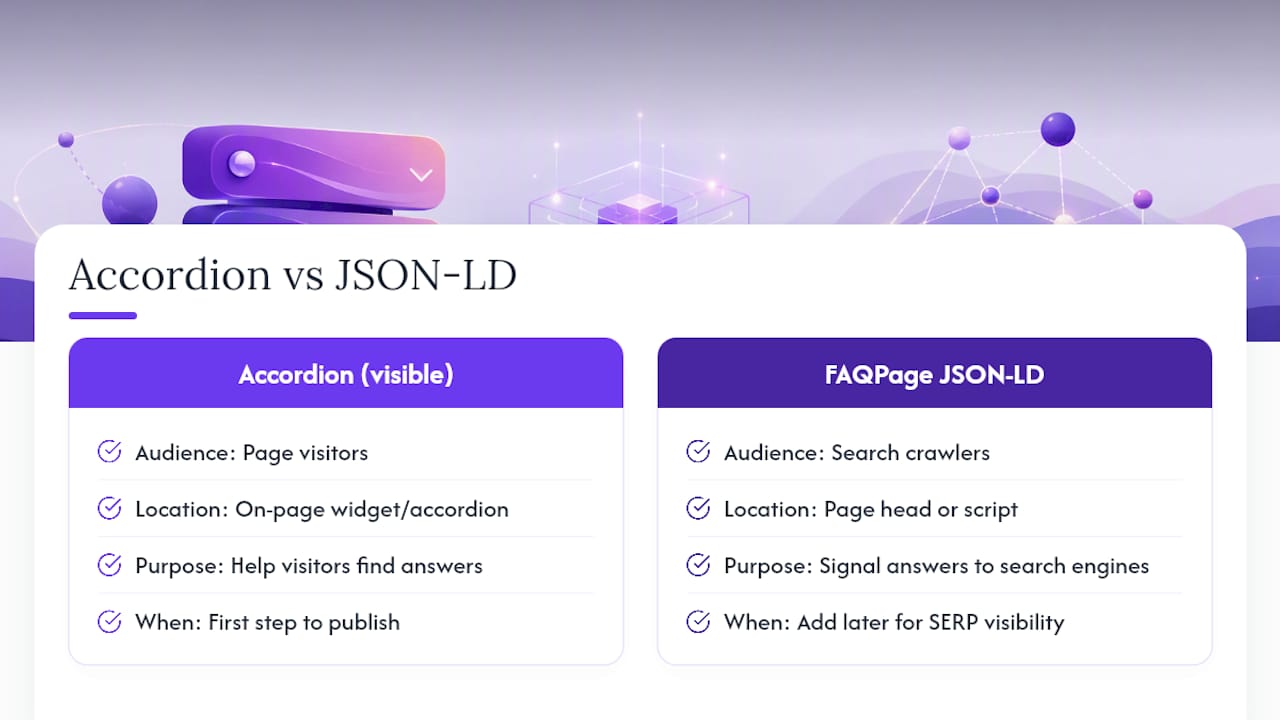
For the SEO-minded reader who lands here searching “FAQ schema markup,” the practical takeaway is this: your FAQ content still needs to exist, be well-written, and be easy to scan, regardless of what backend markup you layer on top of it later. A visually accessible accordion with clear questions and concise answers gives you a foundation. Search visibility strategies (structured data among them) build on that foundation. They don’t replace it.
If your primary goal right now is getting a working, accessible FAQ section live on your site quickly, an embeddable widget or native disclosure pattern is the correct starting point. Structured data markup is a separate, later layer for a different audience: developers focused specifically on search result appearance rather than on-page visitor experience.
How to Set Up a Working FAQ Accordion the Right Way
Whether you’re using a widget or hand-coding a section, the setup sequence stays consistent. Start with your content: write questions in the exact phrasing customers actually use, not internal jargon. Keep answers to two or three sentences where possible; anything longer probably needs its own page with a link from the FAQ.
Structure each item as a heading containing a button, as covered in the accessibility checklist above. If you’re building this from scratch in HTML, native <details> and <summary> remain the least error-prone option:
<details>
  <summary>Do you ship internationally?</summary>
  <p>Yes, we ship to over 40 countries. Delivery times and costs vary by destination.</p>
</details>
That markup alone gives you keyboard support, screen reader announcements, and toggle behavior with no custom JavaScript. If you need theming, analytics, or edits across multiple pages, that’s the signal to move to an embeddable widget instead, built and styled through a tool like Zyff’s widget builder, where the same accessibility principles get baked into the generated markup.
Either path, test the result exactly as described earlier: keyboard only, then with a screen reader, then on an actual phone screen. Skipping that step is how accordions ship broken and stay broken for months.
Common Mistakes That Break FAQ Accordions
The same handful of errors show up again and again on small business sites, and every one of them is avoidable.
Clickable text that isn’t a button. A <span> or <div> styled to look interactive but built with a raw click handler locks out keyboard users entirely. Baymard’s accordion research points to this exact pattern as a leading cause of accessibility failures in the wild.
Visually hiding content instead of semantically hiding it. Setting max-height: 0 or opacity: 0 on a collapsed panel might look right, but the content is still sitting in the DOM and the accessibility tree. Screen readers announce it anyway, confusing users who hear answers to questions they never opened.
No focus indicator. Removing the default focus outline for aesthetic reasons, then never replacing it with a visible alternative, leaves keyboard users with no idea which question they’ve navigated to.
Overloading the page with too many open panels by default. Every item expanded on load defeats the entire purpose of an accordion: helping people scan past what they don’t need.
Ignoring layout shift. Loading a widget’s script without reserving its container space causes the page to jump the moment content renders, which drags down your Cumulative Layout Shift score and annoys anyone mid-scroll.
Skipping real assistive tech testing. Testing with a mouse and calling it done misses nearly every issue that actually affects screen reader and keyboard users. Run through VoiceOver, NVDA, and TalkBack before you consider a FAQ section finished.
Most of these trace back to one root cause: treating the accordion as a purely visual component instead of an interactive one with real semantic requirements underneath.
How FAQ Content Affects Search Results and Visibility
A clear, well-organized FAQ section supports your search visibility indirectly, even without any structured data layer involved. Search engines reward pages that answer user questions directly and completely, and a scannable FAQ accordion is one of the most efficient ways to pack multiple specific answers onto a single page without burying them in dense paragraphs.
There’s a secondary benefit that’s easy to overlook: FAQ sections tend to capture long-tail, question-phrased search queries almost by accident. Someone searching “does [your product] work with [specific use case]” is far more likely to land on a page with that exact question spelled out in an accordion than on a generic product description page that never phrases things that way.
Rich result appearances in search listings (the kind tied to structured data markup) are a separate mechanism from what’s covered here, and they depend on factors outside a visible FAQ widget’s control. What is within your control: writing real, specific questions your customers actually ask, keeping answers accurate and current, and making sure the content itself is crawlable text rather than an image or a JavaScript-only render that a crawler might not process fully.
If visibility in search results is your primary goal, treat this article’s focus (a fast, accessible, visitor-facing FAQ) as the necessary foundation, and treat any structured-data decisions as a separate, later technical project handled alongside your broader SEO work.
What to Keep in Mind From Google’s Guidance on FAQ Content
Google’s general content guidelines for any page, FAQ sections included, consistently emphasize a few things worth carrying into your accordion design regardless of what markup sits underneath it. Content should be original, genuinely answer the question asked, and stay current. An FAQ section listing a return policy that changed eight months ago does more harm than good, both for visitors and for how the page reads to a crawler evaluating freshness and accuracy.
Google’s documentation on structured data more broadly has also tightened over time regarding which elements qualify for special treatment in search results, and eligibility for any enhanced listing format has narrowed and shifted depending on site type and content category. That’s a separate, evolving technical area outside the scope of the visible accordion widget this guide covers.
The practical guidance that translates cleanly into what you’re building: keep each FAQ item as a genuine standalone question with a genuine standalone answer, avoid duplicating the exact same question-and-answer pair across multiple pages just to pad content, and make sure the text is real, readable text in the page’s HTML rather than something rendered exclusively as an image or locked behind a script that never executes for a crawler.
Tools to Check Your FAQ Accordion Works Correctly
You don’t need an elaborate QA process to catch the issues that actually matter. A short, repeatable check covers almost everything.
Start with the browser’s built-in accessibility inspector (available in Chrome DevTools and Firefox’s Accessibility panel) to confirm each question renders as a button inside a heading, with aria-expanded toggling correctly when clicked. Lighthouse, built into Chrome DevTools, flags layout shift issues and gives you a Cumulative Layout Shift score you can track before and after adding the widget.
For real assistive technology testing, there’s no substitute for the actual tools: VoiceOver on Mac and iOS, NVDA on Windows, and TalkBack on Android. Run through the FAQ with each, listening for whether expand and collapse states get announced clearly and whether focus lands where you’d expect after each interaction.
Keyboard-only testing costs nothing and catches the most common regressions. Unplug the mouse, tab through the page, and confirm you can open, close, and read every item using only Tab, Enter, and Space.
If your FAQ lives inside a page metadata or markup review process alongside other technical SEO work, a tool like the meta tag generator from Premium Web Tools can help verify surrounding page metadata while you’re in there checking the accordion itself. And if you want a second opinion on Q&A-style implementations more broadly, Konvuno’s FAQ assistant approach is worth a look for teams considering more advanced, conversational Q&A features beyond a static accordion.
Priorities for a Small Team Shipping FAQs
Ship a handful of high-value questions first. Track whether support tickets drop and whether visitors actually engage with the accordion, then expand from there. Get access and load speed right before you touch animations or heavy theming; a beautiful widget that’s slow or unusable with a keyboard fails the people who needed it most. For a short static page, native <details> beats custom code every time. Reach for an embed only when you genuinely need centralized control across pages.
— Ashok
Get a FAQ Accordion Live Today With Zyff
Most of what slows teams down here isn’t the FAQ content itself, it’s the build. Zyff cuts that step down to one line of code you paste once, with no watermark forced on the free tier and 49 tools that stay completely unmetered no matter what plan you’re on.
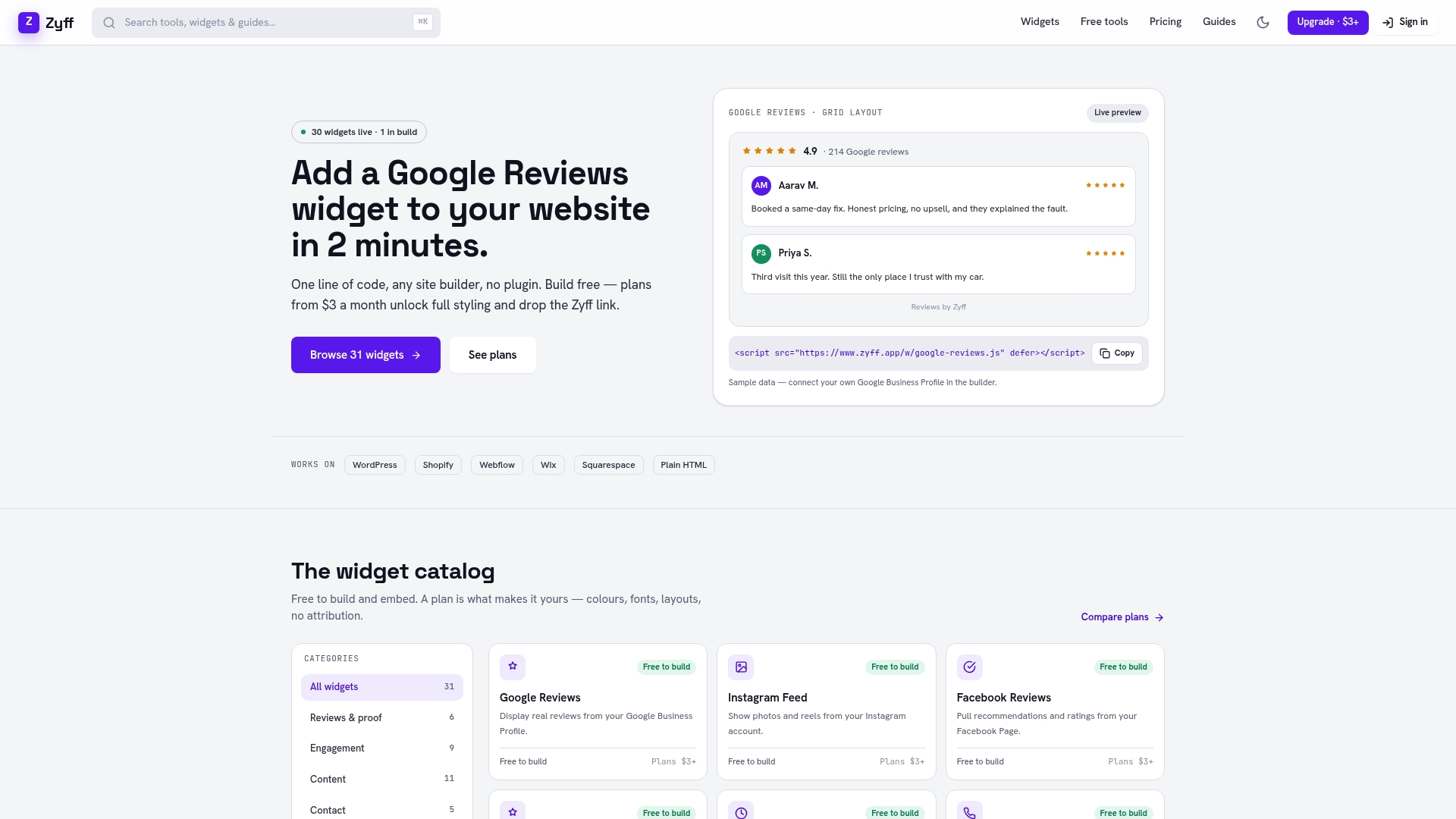
Design your accordion, set the styling to match your site, and grab the embed snippet from the Zyff widget builder. Paste it into your homepage or a dedicated FAQ page and it’s live, no developer required. If you outgrow the free tier and need more saved widgets, higher view limits, or full white-labeling, plans start at $3 a month on the Basic tier, scaling up to Premium and Enterprise for teams managing FAQs across multiple sites. Start building your first widget now and see it running before your coffee gets cold.
Sources
- Accordions on desktop: when (and how) to use them — NN/g
- Accordion and tab design — Baymard Institute
- Web
- Embed content blog — Chrome Developers
FAQ
What’s the fastest way to add a FAQ section to my site?
For a small, static FAQ, native <details>/<summary> tags work immediately with no setup. For anything you’ll update often or manage across multiple pages, a one-line embed from a tool like Zyff gets you a styled, working widget in minutes.
Does an FAQ widget need to be accessible by default?
Yes. Each question should live inside a heading with an actual button control, toggle aria-expanded, and hide collapsed panels from the accessibility tree rather than just visually. Baymard’s research documents these as the most common failure points in custom accordion builds.
Will adding a FAQ widget slow down my site?
It can, if the script blocks rendering or the container isn’t sized before load. Lazy-loading the widget with an IntersectionObserver and reserving fixed dimensions ahead of time, as web.dev recommends, keeps the performance impact minimal.
Should I use Expand All and Collapse All controls?
For any FAQ with more than a handful of questions, yes. NN/g specifically recommends these controls so visitors aren’t forced to click through items one at a time to scan the full list.
Does Zyff’s FAQ widget cost anything to use?
Zyff’s core widget tools are part of its free, unmetered tier with no watermark forced on users. Paid plans start at $3 a month and unlock more saved widgets, higher view limits, and full customization for teams managing FAQs across several sites.